Complete Guide: Effortlessly Delete Your ChatGPT Chat History
In the fast-paced world of digital communication, your ChatGPT history is more than just an archive of previous conversations—it’s a reflection of your thoughts, projects, and queries. As advancements in AI, particularly with the introduction of GPT-5, allow for more personalized interactions, maintaining privacy within that space is crucial. With OpenAI’s latest “Memory” features keeping tabs on your preferences across sessions, a cluttered chat history doesn’t just cause distraction; it may also pose a potential **privacy risk**.
To ensure that previous dialogues don’t skew future interactions, consider regularly purging your chats. Luckily, this straightforward process can be accomplished in under five minutes—either at home or on the go. OpenAI has streamlined the steps for both desktop and mobile platforms, making it easier than ever to reclaim your digital space.
Understanding Archiving vs. Permanent Deletion
Before diving into the deletion process, it’s essential to clarify your goals. Are you looking to just tidy up your view, or do you want to erase specific conversations completely? OpenAI provides two options for managing your chats: **archiving** and **deleting**. Each serves a distinct purpose.
Archiving conversations is akin to putting away clutter; it hides chats from your main view, but the data remains associated with your account. In contrast, **deletion** means more than just hiding—the chats are wiped entirely, starting a 30-day countdown for them to vanish from OpenAI’s servers.
Steps to Delete All ChatGPT Conversations on Desktop
Step 1: Begin by logging into your ChatGPT account and clicking on your username at the bottom-left corner.
Step 2: A pop-up menu will appear; select **Settings** to access the ChatGPT settings.
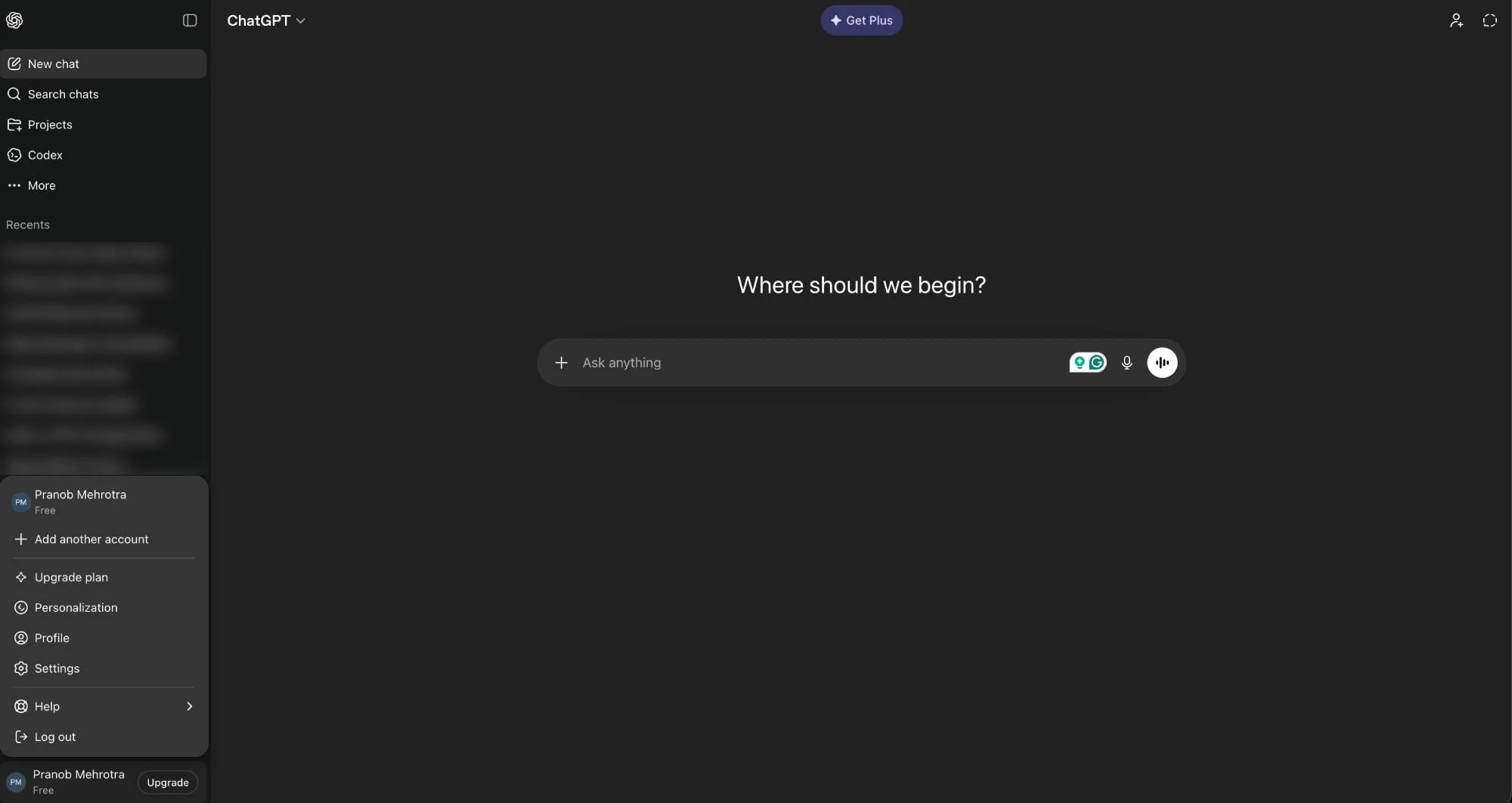
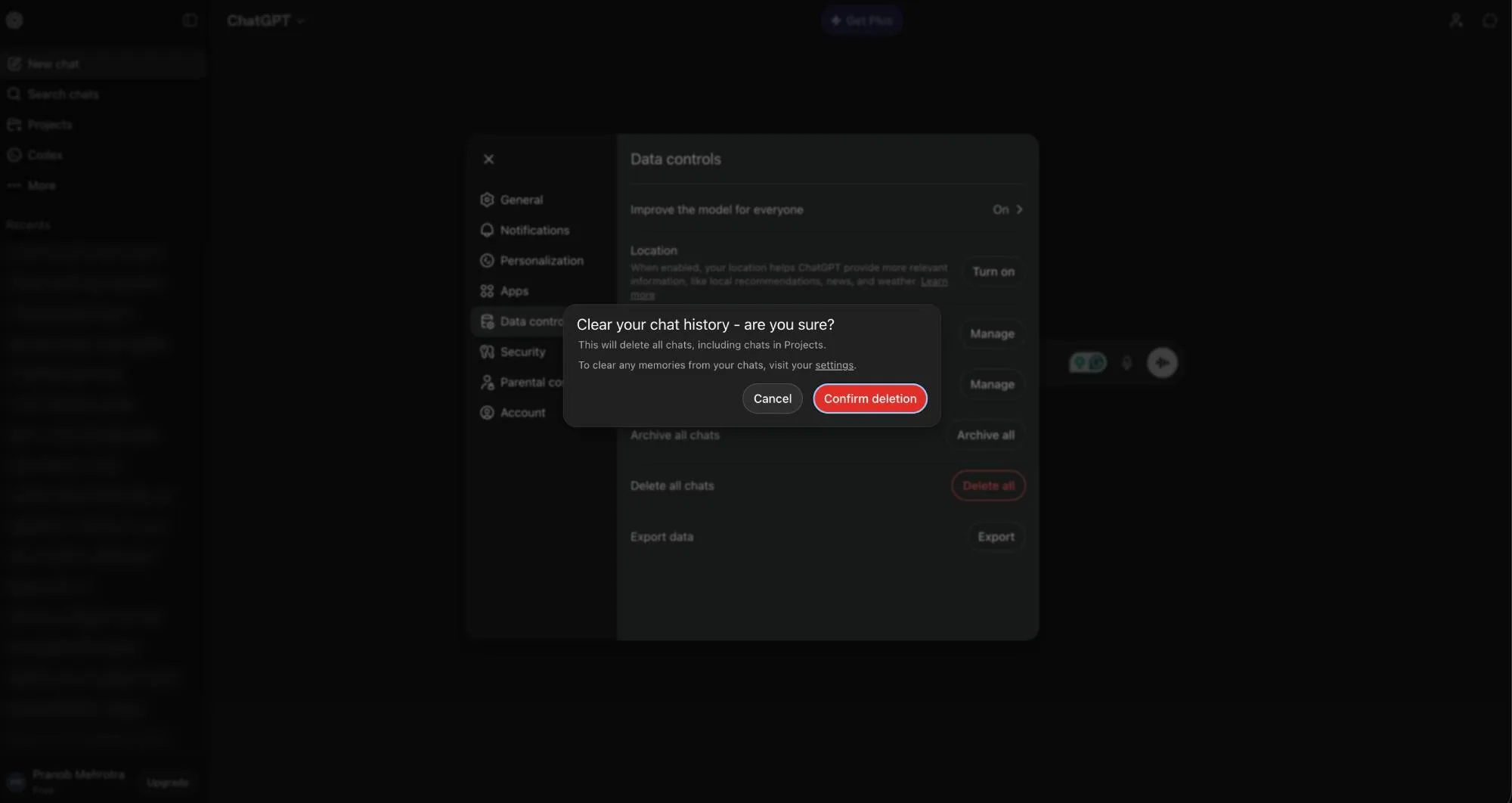
Step 3: In the settings menu, click on **Data controls** in the sidebar and then the red **Delete all** button next to the option.
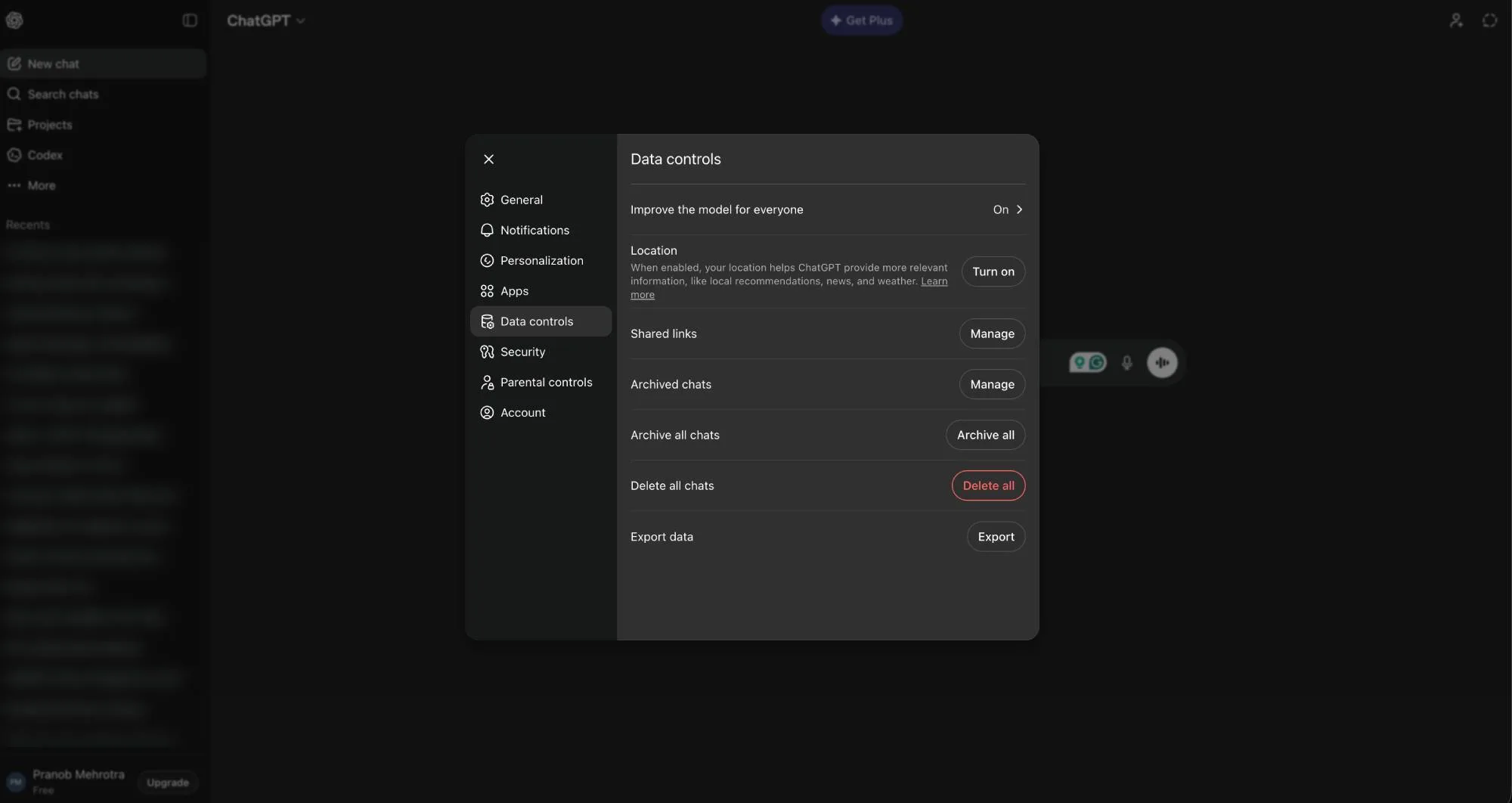
Step 4: Finally, confirm your action by clicking **Confirm deletion** in the pop-up dialog.
Steps to Delete All ChatGPT Conversations on Mobile
If you’re using the ChatGPT app on your smartphone, the method to bulk delete your chats varies slightly.
Step 1: Open the app and log in, then tap on the button located in the top-left corner to access the sidebar.
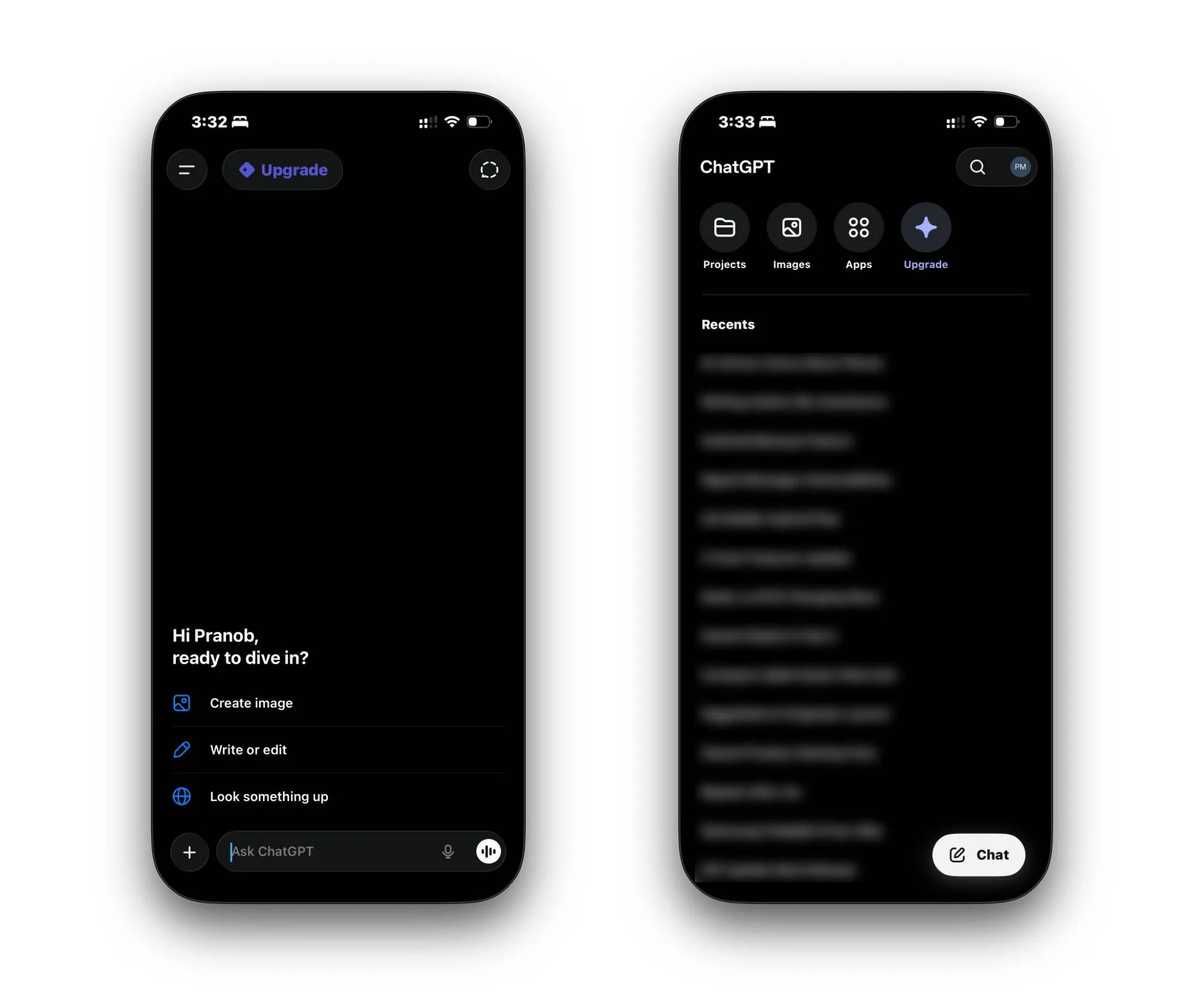
Step 2: Tap your profile icon in the corner to access the Settings menu.
Step 3: Select **Data controls** and then tap the red **Delete all chats** option.
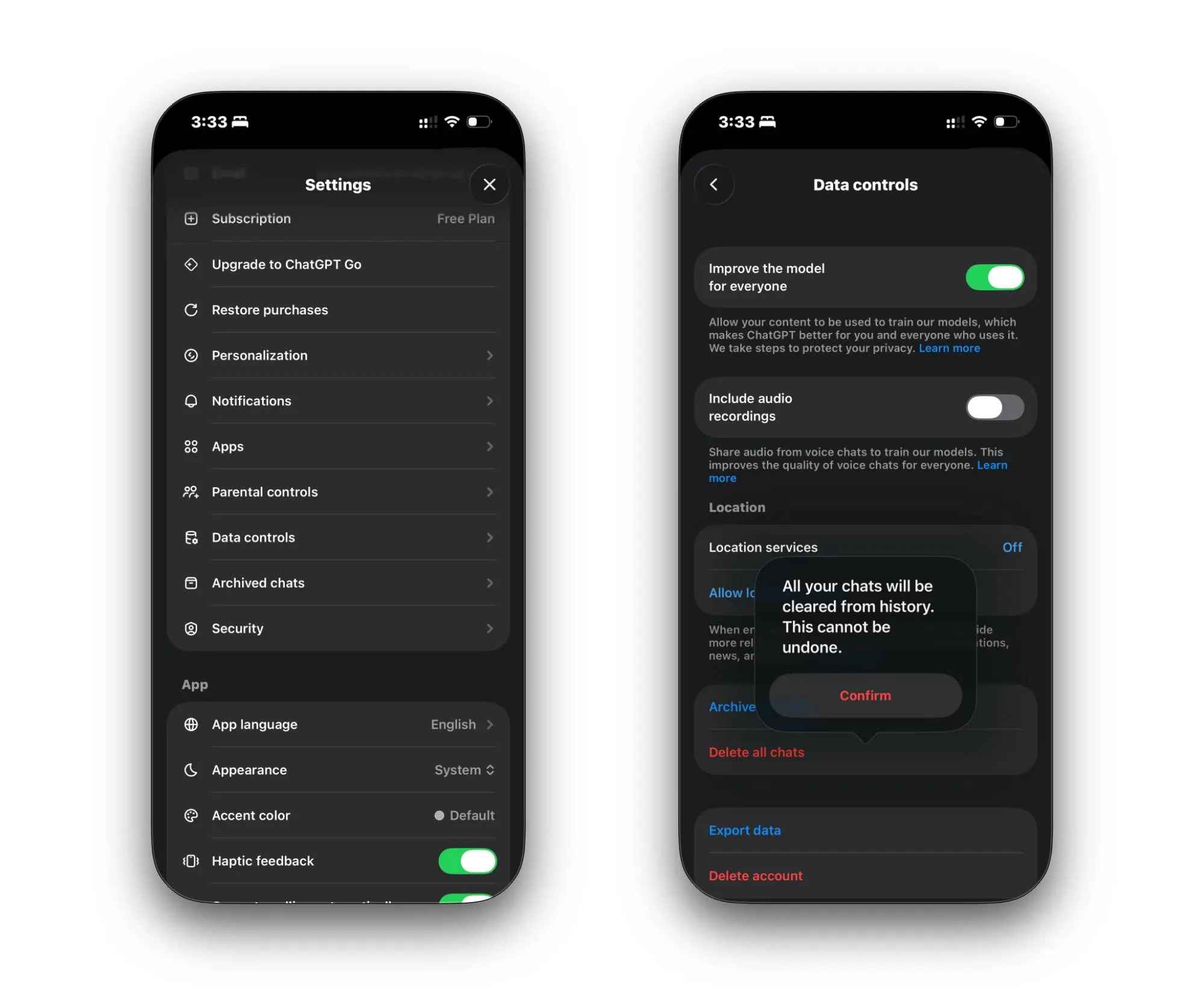
Step 4: Confirm by tapping **Confirm** in the prompt to erase all conversations from OpenAI’s systems.
How to Delete a Single ChatGPT Conversation
At times, you may prefer to delete a specific conversation rather than your entire chat history. For instance, if you’re about to showcase your screen during a presentation and want to keep sensitive information private, selectively removing that chat thread is wise.
On desktop, hover over the chat you wish to delete, click the three dots that appear on the right, select **Delete**, and confirm your action.
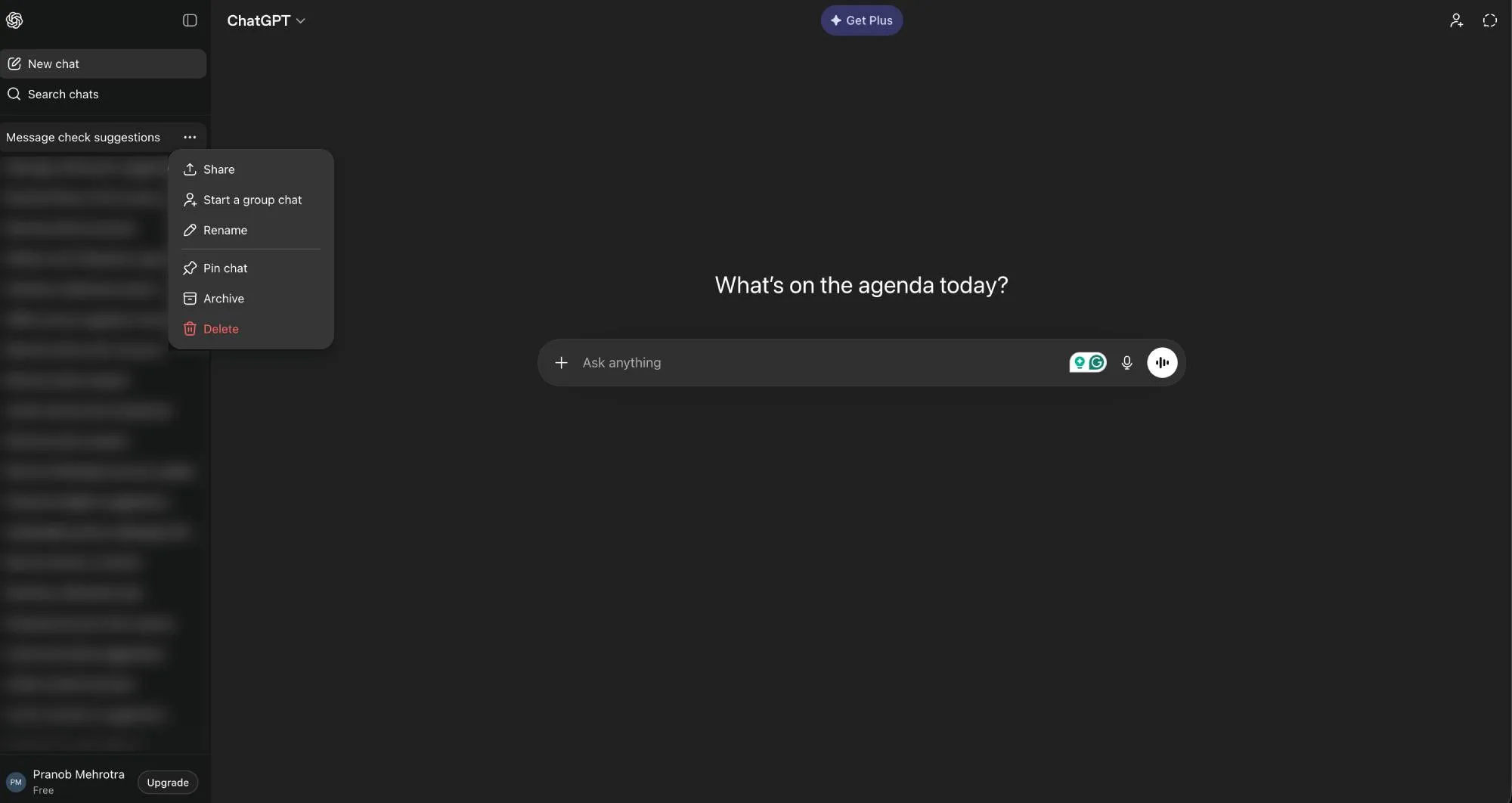
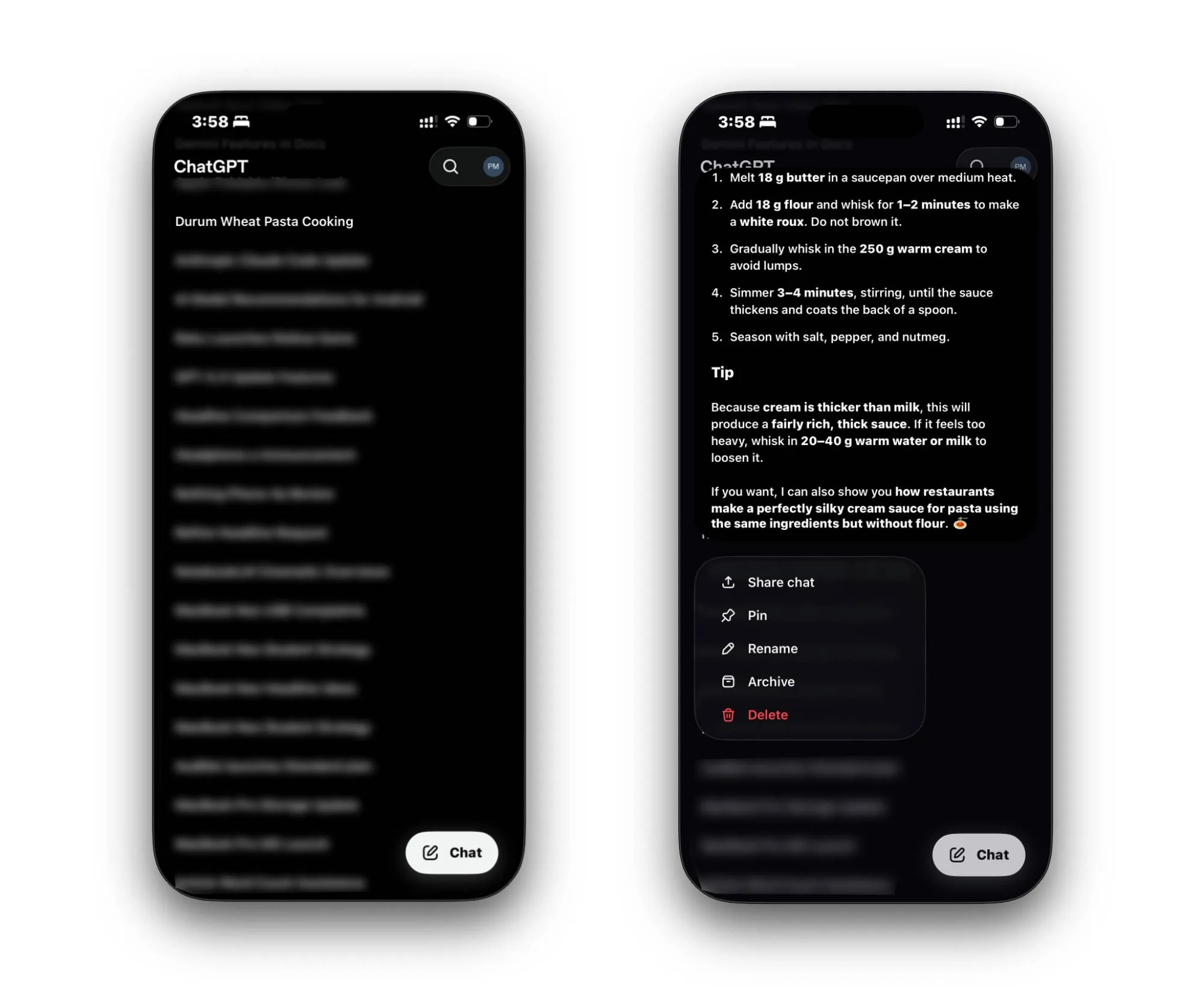
On mobile, reveal the sidebar, find the chat, long-press on its title, and select **Delete** from the menu.
Proactively Manage Your ChatGPT History with Temporary Chats
The most efficient way to maintain a tidy ChatGPT history is by adopting the **Temporary Chat** option. To enable it, simply click or tap the dotted speech bubble button in the top-right corner.
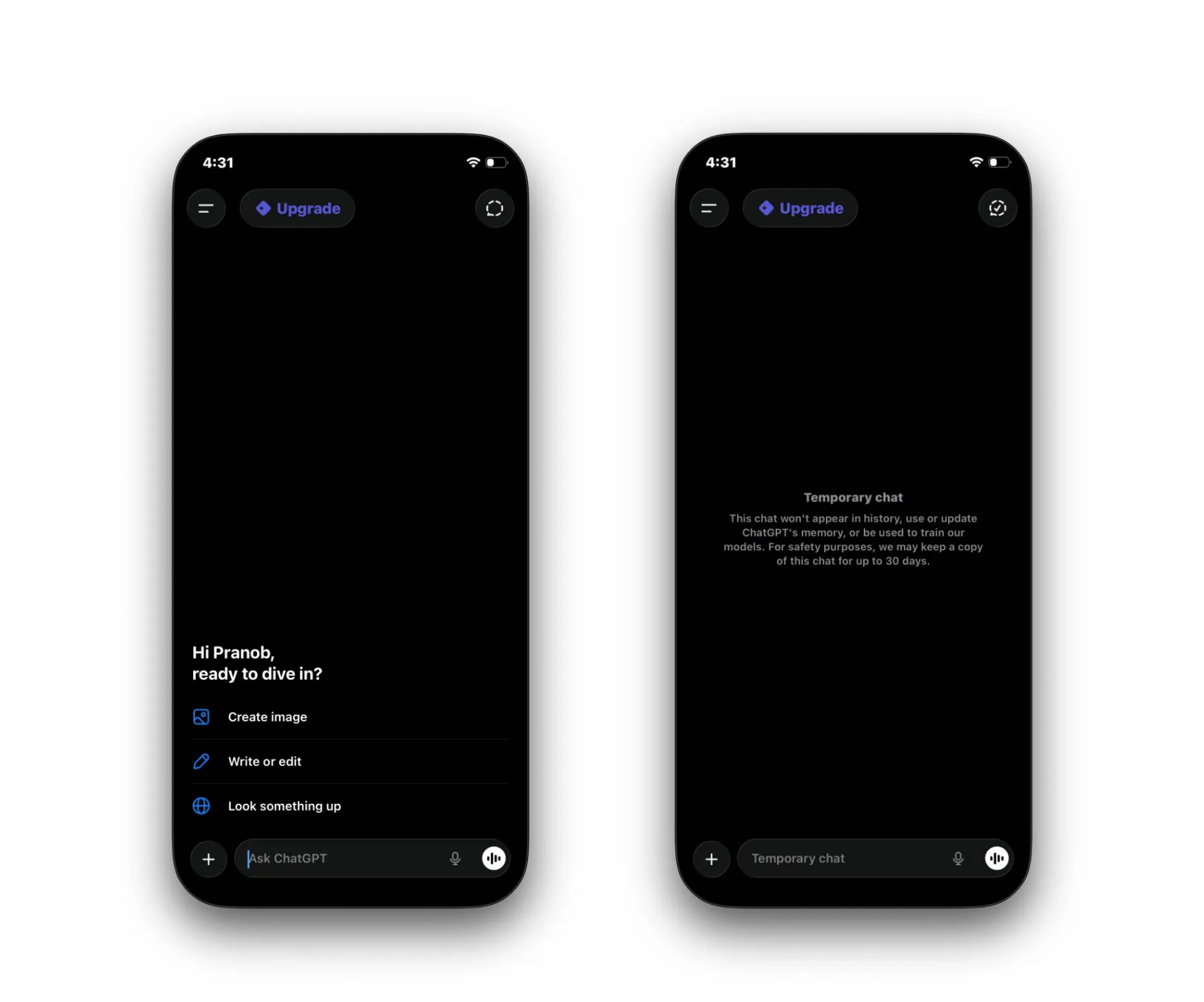
Conversations initiated in this mode won’t appear in your history, won’t contribute to the **Memory** feature, and OpenAI asserts that they aren’t used in training their models. Think of this as the incognito mode of the AI landscape, ideal for sensitive inquiries.
Does Deleting Chats Actually Wipe Your Data?
Many believe that clicking delete immediately erases all data from OpenAI’s servers. However, according to current guidelines, deleted conversations may linger for up to 30 days to allow for policy monitoring before being permanently removed.
If you have opted to “Improve the model for everyone,” your discussions may have already been incorporated into the model’s training data. To truly erase your presence, begin by deleting all chats and turning off this option before engaging in new discussions.
Take Control of Your Data
Whether you’re refining a singular query or managing your entire conversation history, it’s crucial to be proactive about your footprint in ChatGPT. OpenAI has provided the necessary tools; however, it’s your responsibility to utilize them effectively.
By routinely cleaning your history and utilizing Temporary Chats for sensitive matters, you can enjoy the advantages of ChatGPT while minimizing your digital footprint. Ensure you’re in control of your personal data—don’t leave any traces behind. Embrace your digital experience and take the reins today.
Ready to make your ChatGPT experience more tailored and secure? Start your journey now—clear your chat history and explore Temporary Chats for a more private interaction!