Why I Wish I Had Discovered This App Sooner: My Journey with iPhones Since the 7 Plus
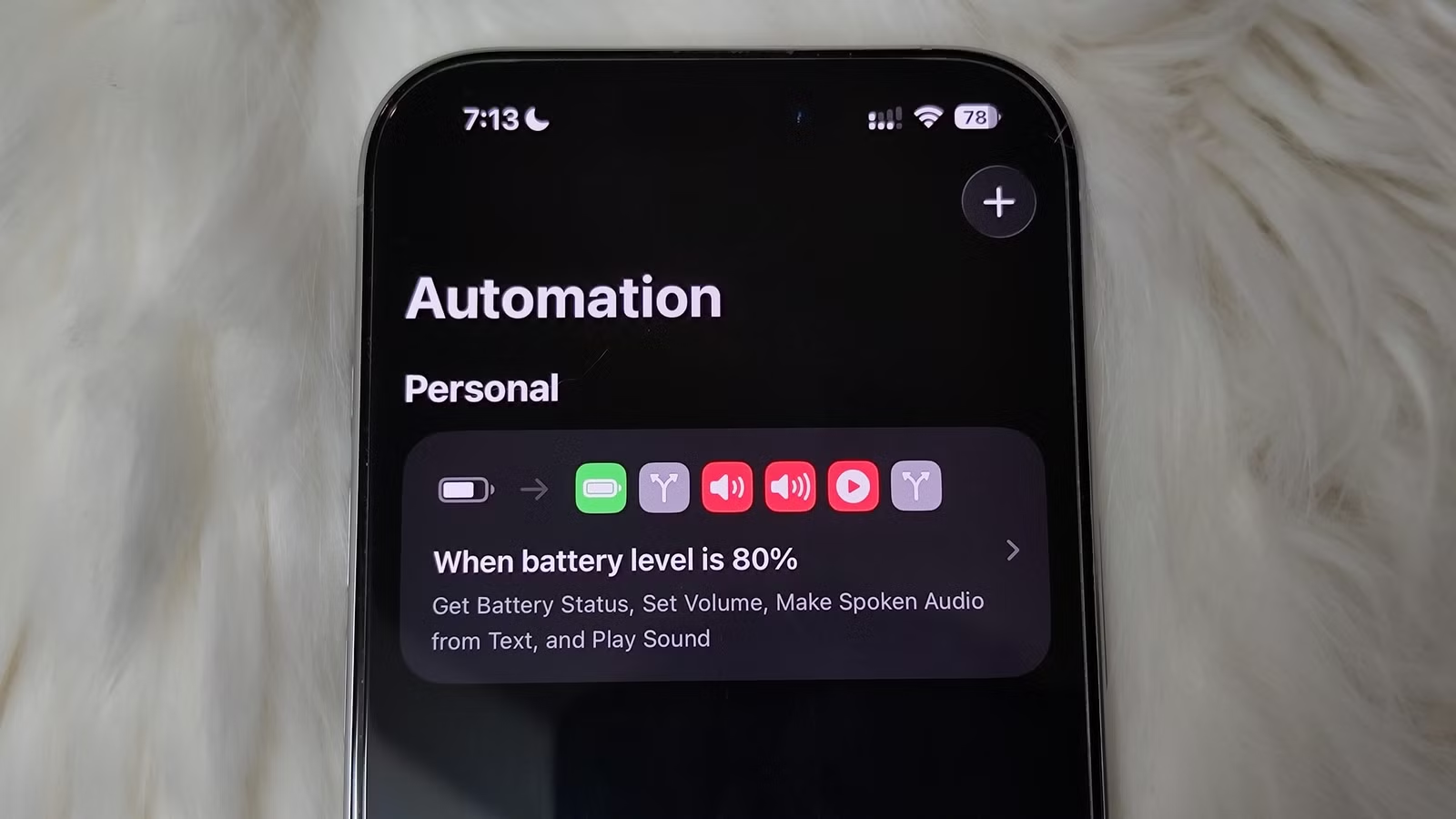
My introduction to the iPhone began in 2019 with the iPhone 7 Plus, but even now, I’m continually uncovering innovative ways to enhance my experience. Nestled within the default apps lies a hidden gem known as the Shortcuts app—previously called Workflow. Recently, I’ve started to harness its power, and let me tell you, it has dramatically revolutionized the way I engage with my device.
While I have been aware of the Shortcuts app, I didn’t fully appreciate its capabilities until necessity prompted me to explore it. Faced with the option of downloading a freemium app riddled with ads and paywalls, I took the plunge into Shortcuts. With a little guidance, I quickly realized its potential and the transformative impact it could have on my daily routines.
Why I Shied Away from the Shortcuts App for Too Long
The Blind Spot: Misjudging Its Value
I’ll admit it—I initially overlooked the Shortcuts app simply because I didn’t see its potential for an everyday user like me. Many standard automations were already managed by my iPhone’s settings. For example, when my battery drops below 20%, Low Power mode kicks in automatically, and Do Not Disturb silences notifications when I need to concentrate.
Nonetheless, countless possibilities exist with Shortcuts, ranging from simple automations to sophisticated workflows. The real issue? Apple doesn’t give Shortcuts the spotlight it deserves; it often feels buried within the operating system, away from the Dock, Siri suggestions, and most Apple marketing campaigns.
Through my own exploration, I discovered that Shortcuts could craft efficient workflows that simplify repetitive tasks. It’s worth noting, however, that sometimes updates can disrupt existing automations, particularly the more intricate ones tied to specific apps.
The Workflow That Made Me Embrace Shortcuts
A Lifesaver During Chaotic Days
On particularly hectic days, uninterrupted breaks are a must for my sanity. There’s nothing more frustrating than being engrossed in an Audible story or an intense online gaming session, only to have it shattered by a notification. It’s even worse when I accidentally tap a pop-up and lose my focus entirely.
To tackle the issue of disruptive notifications, especially when using apps like Audible or my favorite games, I wanted a streamlined Do Not Disturb approach without resorting to third-party apps. That’s when Shortcuts became my go-to solution.
I devised a simple automation within the app: whenever I opened Audible or a gaming app, the trigger would activate. I set a Do Not Disturb action to kick in, silencing everything else. To my delight, I was also able to create a reverse automation that toggles off Do Not Disturb once I close the app. This breakthrough made me realize just how impactful Shortcuts could be in simplifying my life.
Shortcuts: A Catalyst for Productivity
Countless Hacks at Your Fingertips
Inspired by my newfound efficiency, I decided to delve into the Pomodoro technique. I know Windows has its own Focus Sessions, but I wanted a customizable approach available anytime, right from my iPhone. So, I crafted a Pomodoro timer using Shortcuts.
Customizing My Pomodoro Timer
Creating a timer was surprisingly straightforward. I set up a shortcut with three Ask for Input actions to let me specify the focus session duration, break time, and session count. I chose to restrict input to numbers only to eliminate any chances of errors.
This dynamic approach allowed me to adjust the timings easily and discover what worked best for my workflow.
Phase One: The Pomodoro Focus Time
Once I initiated my focus timer, it began counting down the minutes while the Clock app ran discreetly in the background, signaling the start of my session with a notification. I inserted a Show Notification action to remind me of my focus time, followed by a Repeat action that would loop through the specified number of sessions.
In doing so, I calculated the time in seconds, ensuring a seamless transition between tasks. This setup allowed my alarm to go off precisely when the focus period ended, transitioning smoothly to my break time.
Phase Two: Time to Recharge
After the focus time concluded, another notification would alert me that my break was about to begin. I repeated the earlier process—starting a timer for the specified break duration while converting it to seconds for accuracy. Once the break finished, the process looped back for a refreshingly efficient work session.
Limitless Possibilities with Shortcuts
The possibilities with Shortcuts extend far beyond basic timers. For example, I could easily activate Do Not Disturb when starting my focus session and turn it off during breaks. I could even log my productivity sessions in the Notes app automatically after completing my Pomodoro cycle.
As long as you have a clear purpose in mind, you can master complex workflows that outshine many downloaded apps. The beauty of this lies in your autonomy—you’re free from hidden costs and data collection concerns.
Embracing the Shortcuts app has not only simplified my daily tasks but has also awakened a sense of creativity in how I interact with technology. So, why not take the plunge? Explore the art of automation with Shortcuts and unlock a more efficient you today!