Unlocking Productivity: Why You Shouldn’t Overlook This Essential Microsoft Edge Feature
I’ll be honest—I’ve been a loyal user of Microsoft Edge for quite some time. However, I never fully appreciated its Workspaces feature until recently. Initially, I thought it was just a simple way to group tabs, but I was completely mistaken. Diving into Edge Workspaces has transformed my online experience, making my browsing feel not just organized but remarkably efficient.
Gone are the days of a chaotic browser. Now, I have dedicated spaces for each project, topic, and even personal interests. It’s almost hard to believe I waited this long to explore what Edge Workspaces could do for me.
Understanding Edge Workspaces
Think of it as Virtual Desktops… for Your Tabs
An Edge Workspace is essentially a customized browsing environment tailored to a specific task or project. Each workspace comes equipped with its own set of tabs, favorites, and browsing sessions, creating a neatly organized setting much like Windows’ Virtual Desktops.
This organization allows you to separate your tabs effectively. You might create one workspace for work-related tasks, another for personal browsing, and even one for research or hobbies. The genius lies in its simplicity: you won’t mix spreadsheets with shopping carts or emails with your favorite video playlists.
When you revisit a workspace, Edge effortlessly restores everything exactly as you left it. This means every tab and every session is precisely where you need it, allowing you to jump right back into what you were doing. Plus, the option to share workspaces with others makes collaboration seamless and straightforward.
How Workspaces Revolutionized My Browsing and Working Habits
The Change I Didn’t Know I Needed
Before discovering Workspaces, my browsing experience was chaotic at best—a haphazard collection of dozens of tabs sprawled across multiple windows. I often found myself wasting time searching for that elusive tab, and sifting through an overwhelming number of unrelated windows.
With Edge Workspaces, I’ve found structure and purpose in my browsing routine. I now maintain distinct workspaces for each major project, personal browsing, and educational research. When I’m focused on work, distractions like social media are absent, creating a more productive atmosphere. Transitioning to my “Personal” workspace feels refreshing, like stepping into a different room where work doesn’t intrude.
The most astonishing aspect? I can close my workspaces and shut down my computer without losing track. Everything is ready for me exactly as I left it upon my return.
Creating Workspaces is a Breeze
Set It Up in Seconds
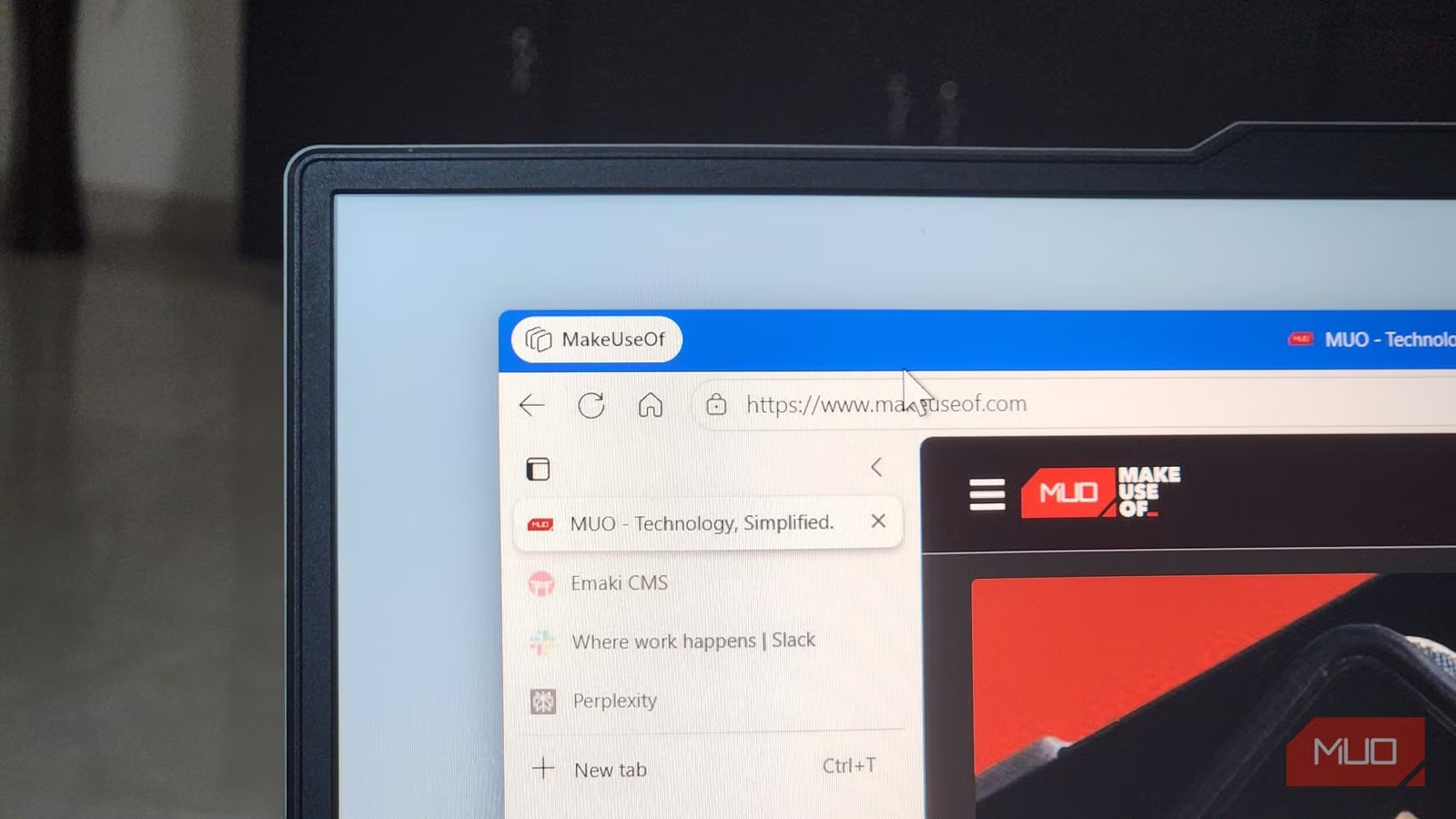
Setting up Edge Workspaces couldn’t be simpler. Just click the Workspaces icon in Edge’s top-left corner, select New, and then opt for Create new workspace or Save tabs to workspace. You can assign a name and even choose a color to help it stand out. Voila! You now have a dedicated workspace to fill with tabs.
Feel free to create as many workspaces as needed, and switching between them is a piece of cake. Just click the Workspaces icon again, select your preferred workspace, and you’re good to go.
Since each workspace operates independently, you still enjoy all the robust tab management features that Edge offers. Whether grouping tabs, utilizing vertical layouts, or moving tabs between devices, the functionality remains intact. If you wish to shift a tab from one workspace to another, simply right-click and select Move tabs to > [Workspace Name].
Collaborate Effortlessly with Workspaces
Share Without the Screen-Sharing Hassles
One of the standout features of Edge Workspaces is the ability to share your workspace with others. This transforms a personal browsing environment into a collaborative platform. It’s perfect for teamwork, group projects, or even planning social events with friends. Everyone can access the same set of tabs and information in real time.
Unlike traditional screen-sharing, there’s no risk of exposing bookmarks, history, passwords, or other personal details. You can even see your collaborators’ profile pictures on the tabs they’re viewing.
To share a workspace, just click the Workspaces icon and choose Invite to workspace. Share the invite link with your teammates, friends, or collaborators. Once accepted, they can view the same tabs and content instantly, updated in real-time.
Before discovering Workspaces, I thought I had my tabs under control, but the reality was quite different. I was juggling numerous unrelated windows and often lost track of essential pages. Workspaces have definitely changed the game for me. If you’re an Edge user and haven’t explored this feature yet, I wholeheartedly encourage you to give it a try. You might discover a whole new level of productivity and organization in your browsing experience.
So, why not take the plunge? Let Workspaces simplify your digital world; you’ll wonder how you ever managed without it!