Unlocking Productivity: How I Transformed My Phone’s Back Tap Feature for Maximum Efficiency
The little things often turn out to be the most significant, especially when it comes to enhancing your daily productivity. In a world where every second counts, even tiny obstacles—like navigating apps or losing focus—can add up, slowing you down. Imagine having a tool that effortlessly eliminates these hiccups. Enter Back Tap on your iPhone, a hidden gem that could transform how you interact with your device and streamline your tasks.
Discovering Back Tap Gestures on iPhone
Back Tap might just be one of those features you’ve overlooked, buried deep within your iPhone’s Accessibility settings. It’s one of those secrets that, once discovered, feels like an essential part of your routine. Instead of fumbling with buttons or menus, a simple double or triple tap on the rear of your device can set off a cascade of actions—making your iPhone feel like a personal assistant.
With Back Tap enabled, you can capture a screenshot, launch an accessibility shortcut, or even execute a multifaceted automation via the Shortcuts app. The potential is limited only by your creativity.
This feature works seamlessly on iPhone models 8 and later, provided you’re running iOS 14 or higher. Even with a protective case, the functionality remains intact. Setting it up is also a breeze:
- Open your Settings app and navigate to Accessibility.
- Select Touch and then Back Tap.
- Choose Double Tap or Triple Tap.
- Pick your desired action from the categorized list—options range from System to Shortcuts.
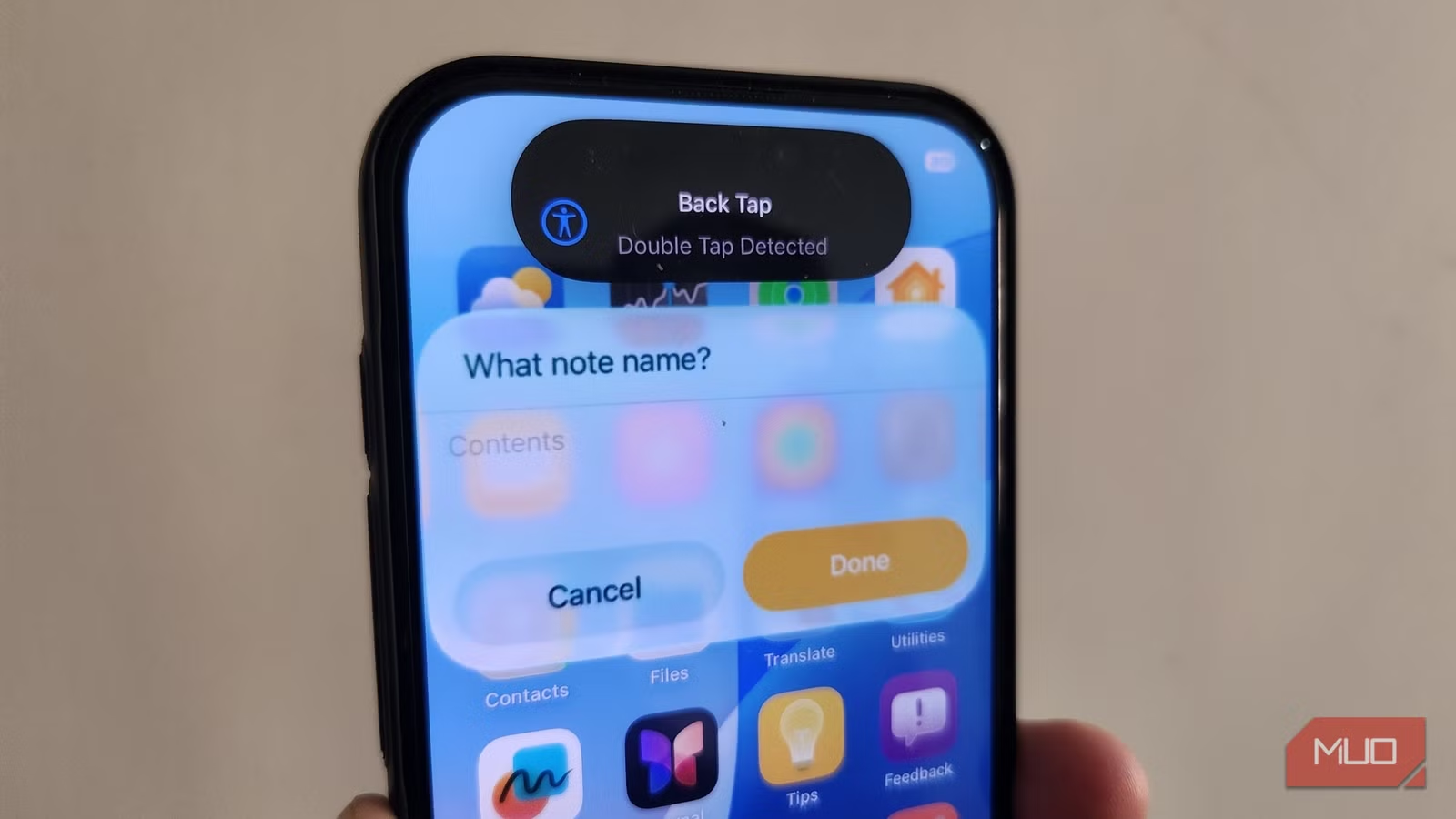
- Enable Show Banner to receive a visual confirmation each time you execute a gesture.
Once you’ve configured these settings, accessing your most used features becomes a matter of mere taps, streamlining your workflow significantly.
Unlocking Quick Notes with Double Tap
In our fast-paced lives, jotting down ideas can often fall by the wayside. Whether you’re surfing the web, chatting, or using an app, having quick access to note-taking is invaluable. By setting up a Quick Note feature with Back Tap, you can eliminate the need to hunt for your notes app.
Since there’s no built-in option for notes in Back Tap, you’ll first need to create a shortcut:
- Launch the Shortcuts app on your iPhone (download it from the App Store if you can’t find it).
- Go to the Gallery tab and search for "notes."
- Tap the plus icon next to the New Note with Date shortcut to add it to your library.
- Once saved, head back to Settings > Accessibility > Touch > Back Tap, choose Double Tap, and select your new note shortcut.
Feel free to customize this shortcut as well. Whether you want it to open a different app or save notes in a specific folder, the choice is yours. With this setup, a double tap on your phone’s back will summon a Quick Note window, no matter which screen you’re on.
This simple adjustment has revolutionized how I capture thoughts. Ideas that once slipped through my fingers are now saved in an instant.
Getting Started with the Pomodoro Timer via Triple Tap
The Pomodoro Technique is a powerful method designed to enhance focus through structured work intervals. Working for 25 minutes followed by a brief break can significantly boost productivity. But why waste time setting timers manually? With Back Tap, you can start a Pomodoro session with a triple tap.
Although Back Tap doesn’t include a built-in Pomodoro option, creating one is straightforward. Here’s how:
- Open the Shortcuts app and navigate to the Gallery tab.
- Search for “pomodoro” and add Start Pomodoro to your library.
- Go to Back Tap settings and assign it to Triple Tap.
Now, with just three taps, your timer pops up, ready to go.
As someone who often struggles with procrastination, this feature has made a notable difference in my work habits. Having the ability to kick off a Pomodoro session effortlessly has kept me on track and focused.
In a sea of iPhone features—some flashy and others easy to overlook—Back Tap stands out as a productivity booster waiting to be unleashed. The examples provided are merely the beginning. If you’re already utilizing the Shortcuts app to automate tasks, imagine the possibilities with Back Tap at your fingertips.
Embrace this hidden treasure and let it redefine how you engage with your device. You may just find that boosting your productivity is a simple tap away.
So why wait? Dive into your iPhone settings today and discover how Back Tap can enhance your daily routine. You deserve the ease and efficiency it brings!