Unlock Productivity: Discover the Hidden Benefits of Workspaces, the Best PowerToys Feature for Your Windows PC
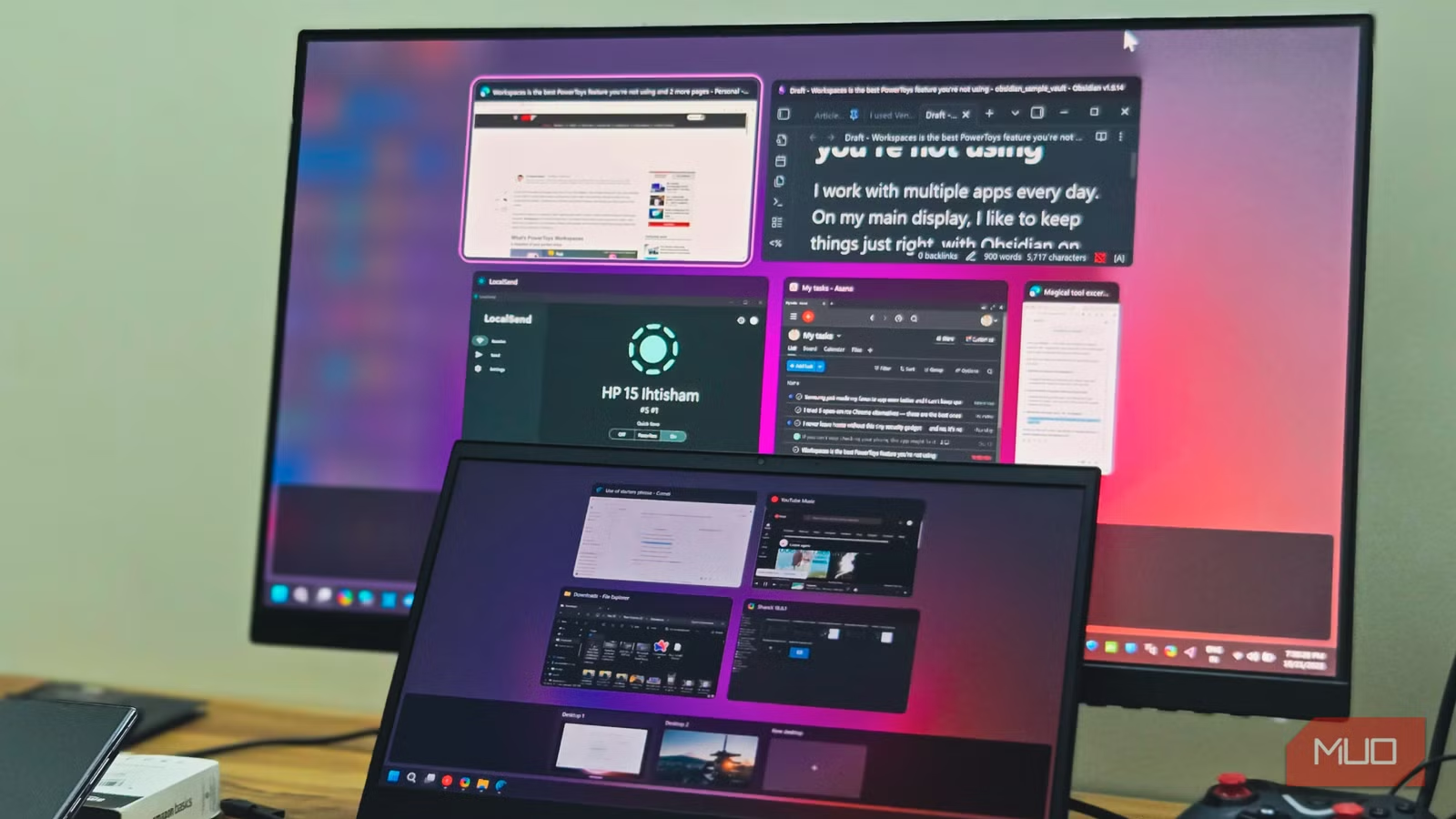
I rely on a specific set of applications every day, carefully arranging them to create my ideal workspace. On my primary display, Obsidian serves as my text editor, while a web browser occupies the other half. My secondary monitor is dedicated to a variety of tools, including File Explorer, LocalSend, an LLM tool, and another browser—all neatly occupying a quarter of the screen each.
However, one major drawback of this setup is the tedious task of reconfiguring everything each time I restart my computer. Unfortunately, this happens quite frequently, leading to the necessity of reopening and rearranging all my applications manually. Enter Workspaces in PowerToys, a game-changing feature that allows me to restore my entire layout with a single click. It’s not only effortless but also a perfect solution that should be a default feature in Windows 11.
What is PowerToys Workspaces?
A Snapshot of Your Perfect Setup
PowerToys is Microsoft’s suite of utilities designed for power users on Windows 10 and 11. You may already be familiar with its popular features like PowerToys Run for quick app launches, FancyZones for tailored window layouts, or Always Awake to fend off sleep mode. Yet, the tool that has alleviated my long-standing frustration with Windows is undoubtedly Workspaces.
So, what exactly does Workspaces do? It serves two main purposes: it can remember and relaunch all your frequently used applications and will restore them to your preferred layout. This means no more hunting for misplaced windows or untangling a jumbled desktop.
You also have the flexibility to create multiple workspaces for different projects. Personally, I have distinct configurations for various clients, one tailored for coding, and another for creative pursuits.
Getting started with Workspaces is simple. If you haven’t already, download it from the Microsoft Store. After installation, launch PowerToys, expand the Windowing & Layout section, and then enable Workspaces. The default shortcut to launch it is Win + Ctrl + Backtick, but feel free to customize it to something more memorable.
Creating Workspaces
Set It Up Once, Use It Forever
To craft your perfect workspace, start by arranging your applications just the way you want them. Open all the necessary tools for your specific workflow and use Windows snap layouts or FancyZones for positioning. Once you’re satisfied with the layout, press Win + Ctrl + Backtick (or your chosen shortcut) to open the Workspaces editor.
Click Create Workspace, assign it a name, and hit Capture. Workspaces will take note of every open app and its position. You’ll see a list of captured apps in the editor. If any app doesn’t belong, simply select it and click Remove. Each app also offers advanced options via the dropdown arrow.
With advanced settings, you can add command-line arguments, allowing you to launch apps in specific ways. For instance, you might configure VS Code to open directly into a certain project folder. Additionally, you can set apps to launch as administrators, or determine whether they begin minimized or maximized—perfect for tools like Slack or Spotify that you may want running in the background.
If the captured positions aren’t perfect, you can manually tweak each app’s position. Each workspace can also be saved as a desktop shortcut, accessible from anywhere—including the desktop, Windows search, or PowerToys Run.
Workspaces intuitively handles your open apps, avoiding duplicate launches by repositioning existing windows according to your saved layout. It also remembers which monitor each app is supposed to occupy.
There’s Room for Improvement
Not Quite Perfect Yet
While Workspaces offers valuable functionality, it has some limitations. For instance, it struggles to save web applications; attempts to restore them result in standard browser windows instead. This is frustrating for users like myself who rely on applications such as YouTube Music as a dedicated web app.
Similarly, applications that run through interpreters or Java can throw a wrench in the Works. Workspaces may confuse instances of the same app; for example, setting up three File Explorer windows can lead to them being misaligned or pointing to the wrong directories when launched.
Occasionally, window positioning can also be hit or miss. An app intended for the left monitor might end up on the right, or windows may overlap rather than snapping neatly into their designated zones. While FancyZones can help, ideally, this should be automatic.
Workspaces Fixes a Longtime Annoyance with Windows
Despite these quirks, Workspaces significantly streamlines the usually monotonous process of rearranging your desktop. With a single click, you can restore all your applications to their original positions, and there’s no cap on how many workspaces you can create. This feature prompts one to wonder just how long it might take Microsoft to integrate it into Windows permanently. Until that day comes, Workspaces is an invaluable tool for any productivity-oriented user.
If you’re looking to elevate your workflow and say goodbye to desktop chaos, I wholeheartedly encourage you to give Workspaces a try. Your time and focus deserve the ease and efficiency that comes with a well-organized digital space.