Unleashing Outlook Copilot: My Top Tips for a Clutter-Free Inbox Every Morning
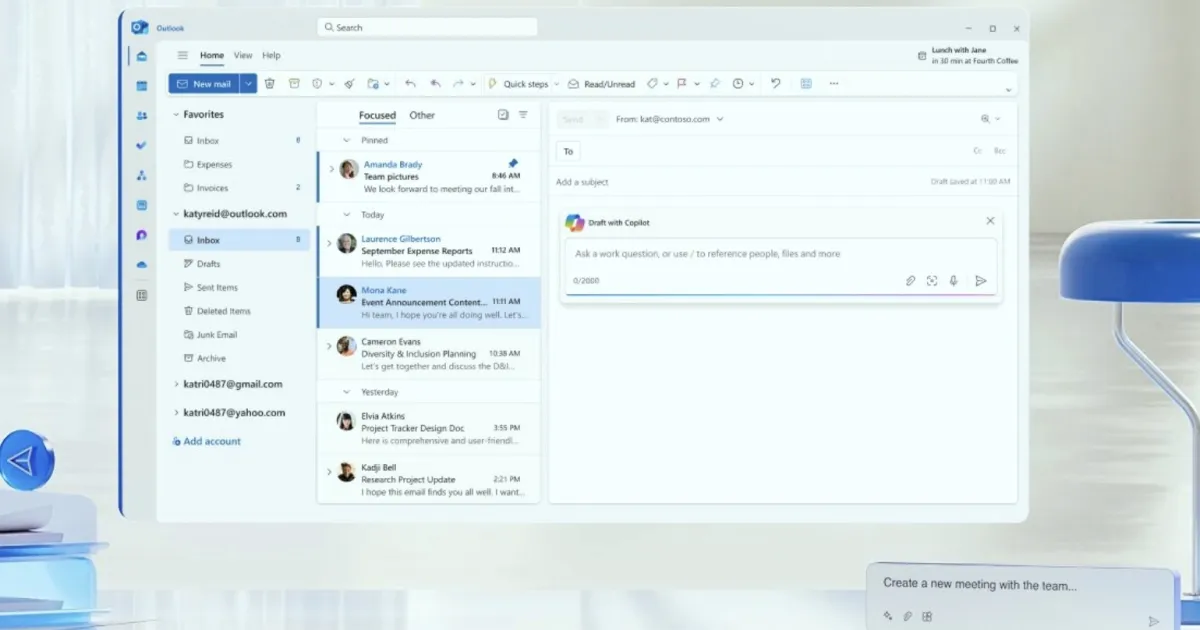
Are you overwhelmed by a flood of emails? You’re not alone. Many of us find ourselves battling the relentless tide of unread messages, losing precious time and energy. Fortunately, there’s a game-changing solution that can help restore order: Copilot in Outlook. After dedicating an entire week to exploring its capabilities, I can confidently say that this AI-powered sidekick transforms your email experience from chaos to clarity.
The Email Battlefield Reimagined
Before I discovered Copilot, my inbox resembled a war zone. With hundreds—sometimes thousands—of unread emails, crucial communications often got lost among the sea of newsletters and forgotten meeting requests. The dread of sifting through it all often left me feeling defeated before I even began my workday. But all that changed once I invited Copilot into the mix.
Copilot is like having a personal assistant who not only understands your needs but anticipates them. This incredible tool summarizes lengthy email threads, drafts replies that reflect my own voice, and even identifies actionable items. The transformation I experienced was profound; my mornings reclaimed their potential, turning from a stress-fest into a more productive zone.
Top 5 Strategies for Email Mastery with Copilot
Here’s the inside scoop on how I leveraged Copilot to achieve email domination over the course of five days.
1. Embrace "Summarize" Like a Pro
No more drowning in endless email threads! By utilizing the "Summarize" feature, you can effortlessly condense lengthy conversations into bite-sized bullet points. This lets you focus on essential decisions and action items without the overwhelming noise. It’s a true time-saver for quickly catching up.
2. Draft with Copilot for Swift Responses
When faced with common questions or quick confirmations, don’t hesitate to use the "Draft with Copilot" feature. Input a few keywords, and watch as it generates a polished reply in seconds. This functionality can significantly reduce your response time, allowing you to prioritize more pressing tasks.
3. Master Your Tone with "Coach Me"
Delivering tough news or constructive criticism? Use the "Coach Me" feature to refine your tone. It evaluates your draft, suggesting improvements in clarity and conciseness. It’s like having a personal communications coach embedded right within your inbox, ensuring your messages always hit the mark.
4. Transform Emails into Actionable To-Do List Items
While Copilot doesn’t currently create to-do lists within Outlook, it excels at identifying action items. By asking it to “extract action items from this email,” you can swiftly compile a list of tasks in your preferred task manager. This process guarantees nothing slips through the cracks, allowing you to stay organized and focused.
5. Schedule Dedicated "Copilot Time"
To maximize the benefits of Copilot, dedicate 15-20 minutes at the start of your workday solely to clearing your inbox. This focused time, assisted by Copilot, helps you process, summarize, and draft initial replies. Starting each day with a clean slate prepares you for the real work ahead.
Embracing the Future of Email Management
I can hardly envision returning to my pre-Copilot inbox days. The overwhelming stress from a cluttered email space has been replaced with a sense of calm and control. If you have access to Copilot in Outlook, I wholeheartedly encourage you to tap into its powerful features. The future of email management is not just within reach; it’s here—and it’s remarkably efficient!
How to Access Copilot in Outlook
Curious about how to get started with Copilot in Outlook? Ensure you have a Microsoft 365 Copilot subscription. Once you’re set up, head to Outlook, whether in a browser or via the app, and watch as Copilot appears automatically. This integrated tool simplifies your email experience immensely, making it a must-have for anyone looking to streamline their workflow.
So, why wait? Embrace Copilot today and take control of your inbox. You’ve got this!