Transform Your Workflow: Copilot Integrates into Windows Taskbar and File Explorer
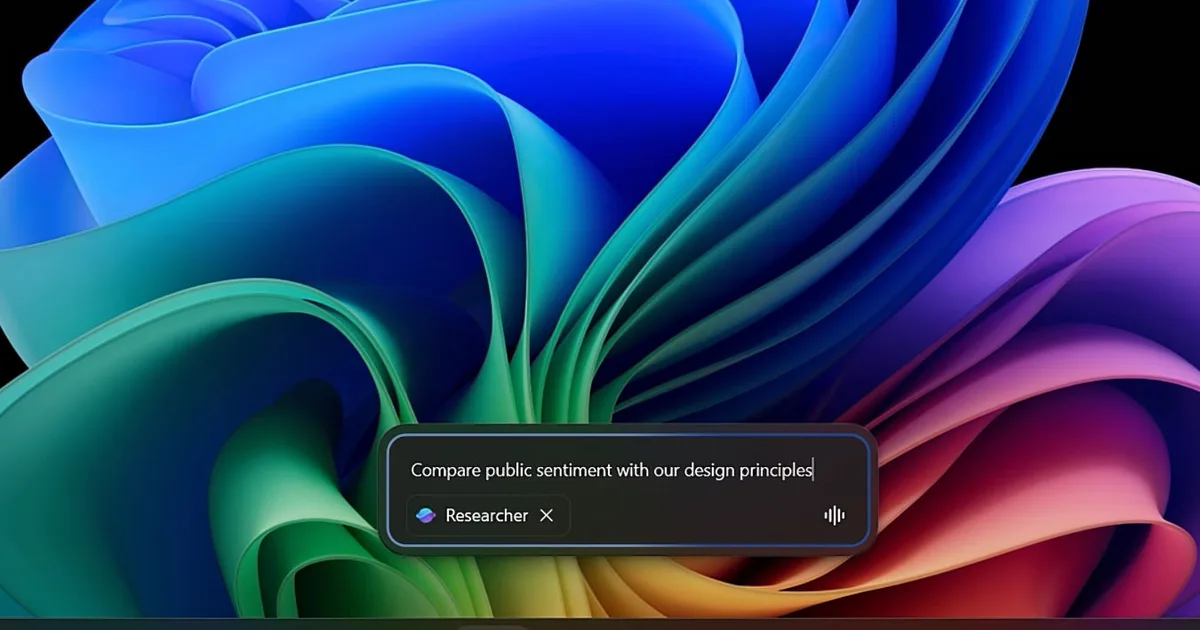
Microsoft’s AI can now summarize documents, find specific data, and handle voice commands without switching apps.
In the world of technology, staying ahead means embracing innovation that enhances productivity and efficiency. For those who prioritize seamless workflow and intuitive tools, Microsoft has unveiled impressive upgrades that redefine how users interact with their devices. With the introduction of Copilot, organizing and accessing information on Windows 11 has never been easier or more intuitive.
Transforming the Taskbar into an AI Command Center
The Windows 11 taskbar is evolving beyond its conventional role. With the addition of Copilot, the previously simple search box now comprehends your inquiries in a more human-like manner. Just type in, “When is my performance review due?” and watch as it effortlessly gathers information from your calendar, emails, and files, eliminating the extensive search through folders.
- Integration with Microsoft 365: The new taskbar functionality connects your local PC to your Microsoft 365 data. It recognizes your frequent colleagues and the documents you access the most, streamlining your tasks.
Now imagine hitting the @ symbol in the taskbar search—it brings up a menu of AI agents running behind the scenes. Unlike traditional applications that often hide within multiple tabs, these agents stay visible on your taskbar, allowing you to monitor their progress while you continue other tasks. For instance, a research agent can spend time analyzing public sentiment aligned with your internal design guidelines.
- Real-Time Status Updates: A simple green checkmark signifies completion; hover over the icon for a quick summary or click for a detailed report complete with sources.
Microsoft
Voice functionality is equally impactful. By holding the Copilot key or using Windows key + C, you can simply say, “Find the file Robin shared,” and it will intelligently determine which Robin you’re referring to by checking your emails and meetings.
Unlocking Insights with File Explorer’s New Copilot Control
In an effort to enhance user experience, File Explorer now integrates your SharePoint and OneDrive files alongside local documents, offering a streamlined view of everything from recent files to your favorites. This is where Copilot Control truly shines—you can inquiry about a file’s content without even opening it.
- Instant Insights: Need a statistic hidden in a lengthy design document? Just ask, and Copilot might present something like, “Over 70% of employees prefer sustainable materials,” right there in the File Explorer window.
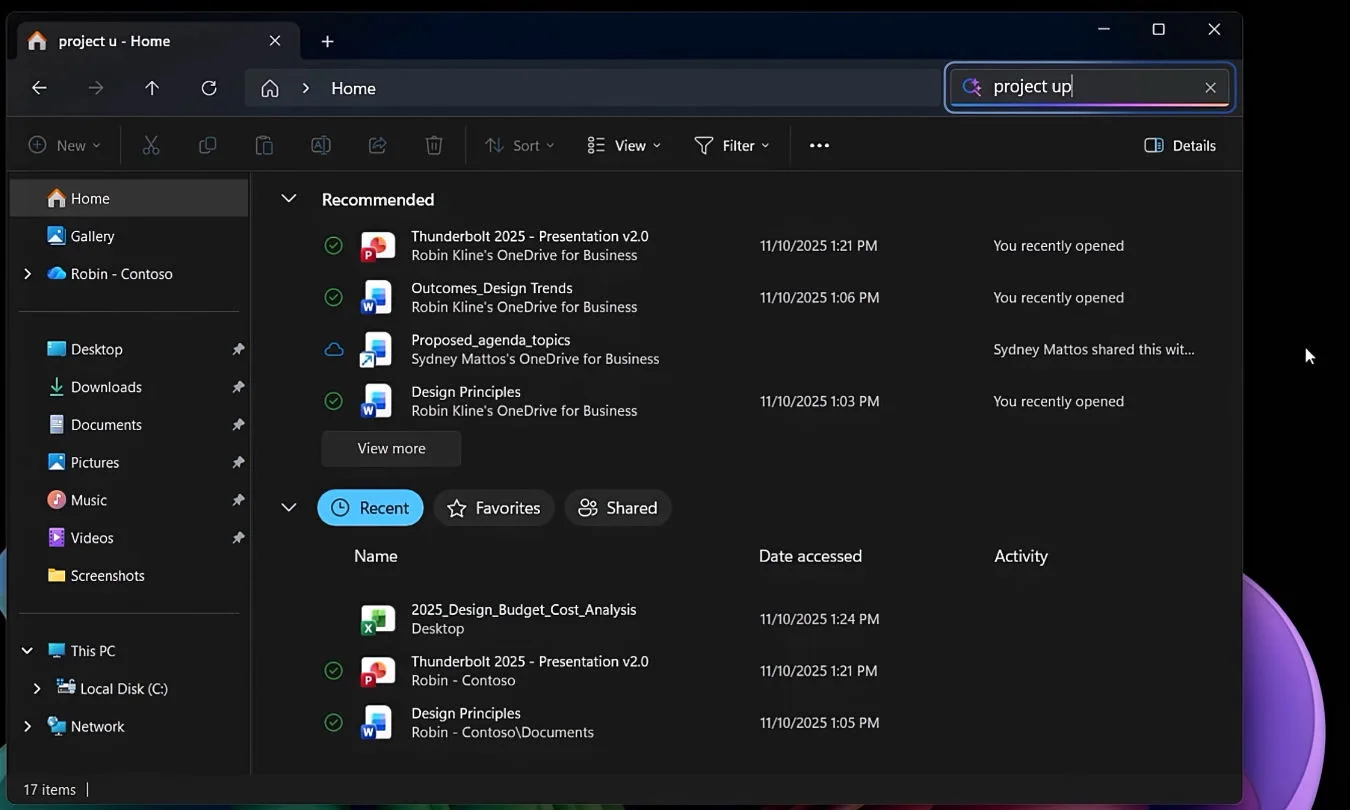
Microsoft
On the mobile front, Google is also stepping up its game with its Files app. The introduction of Gemini allows it to automatically analyze PDFs upon opening, enabling inquiries about a document without the hassle of switching to a separate AI tool.
Implications for Your Workflow
These updates are steadily being rolled out, though availability will depend on your specific hardware. Standard Windows 11 devices can handle cloud operations, while those equipped with Copilot+ PCs featuring NPUs unlock more advanced offline functionalities, including Fluid Dictation and Click to Do.
So, what does this mean for you? It translates to less time searching and more success in finding what you need. The taskbar evolves into a virtual assistant that remembers the location of your essential files, while File Explorer transforms into a more insightful platform for document management.
As you anticipate the rollout of these innovative Copilot icons in the coming weeks, embrace the opportunity to enhance your digital experience. It’s time to work smarter, not harder. Discover the future of your workflow today!