Transform Your Window Management: Meet GlazeWM, the Powerful Open-Source Solution Outperforming Windows
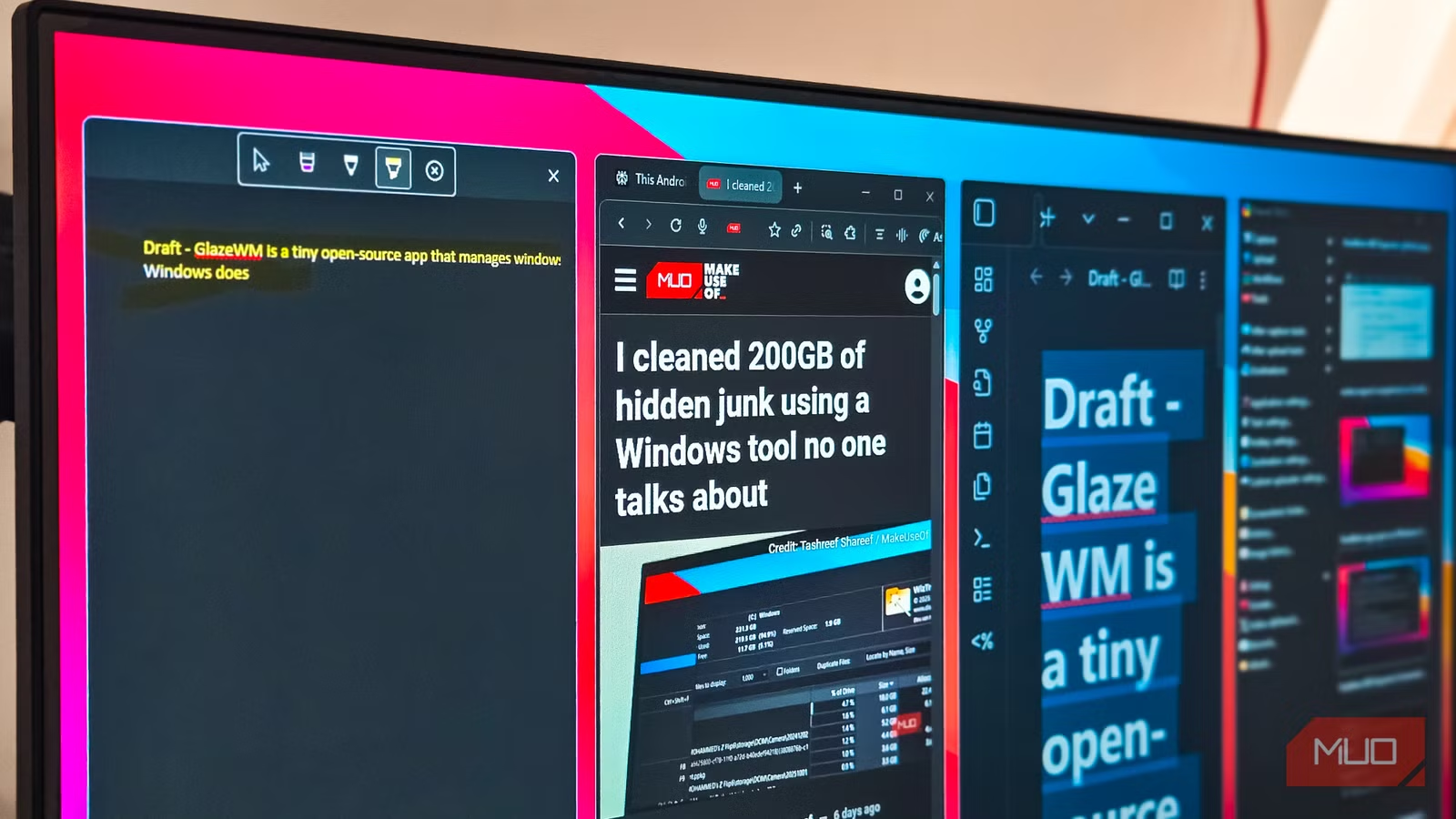
Windows has made strides in window management, but have you ever felt that it falls short for advanced multitasking? Enter GlazeWM, a game-changer tailored for those who crave a more dynamic, keyboard-driven experience. If you’re serious about your workflow, this lightweight, open-source tiling window manager could be just the solution you’ve been seeking.
Understanding GlazeWM
A Keyboard-Driven Tiling Window Manager for Windows
While Windows 11 provides decent window management features, they often don’t meet the needs of power users. You can easily snap windows into halves or quarters using the Win + Arrow keys, and the virtual desktops grant some organization. However, opening a new app typically fills the entire screen, requiring tedious manual arrangement every time.
This is where GlazeWM shines. Upon installation, it automatically tiles every new window you open, creating a seamless workflow. Whether you’re launching a web browser or a document editor, everything adjusts gracefully—no more stacking windows on top of one another. If you open multiple applications, GlazeWM will figure out the optimal arrangement, allowing you to focus on what truly matters.
Exceptional Keyboard Shortcuts for Enhanced Productivity
One of the standout features of GlazeWM is its flexibility driven by keyboard shortcuts. You can easily:
- Move focus between windows
- Resize and adjust window positions
- Switch between different workspaces intuitively
For instance, pressing Alt + Shift + 2 allows you to relocate your active window to the second workspace. Meanwhile, the Alt + Shift + H/J/K/L shortcuts enable effortless navigation in any direction.
Additionally, GlazeWM comes with Zebar, a minimal status bar that replaces the standard Windows taskbar. This feature provides instant visibility into your workspaces and easy switching through hotkeys like Alt+1, Alt+2, and more. For those already accustomed to Linux’s i3, this will feel like second nature.
Installing GlazeWM
Quick and Simple Installation
Getting started with GlazeWM is a breeze. Just navigate to the GlazeWM GitHub releases page to download the latest version. If you prefer using the command line, you can easily utilize Winget as follows:
bash
winget install glzr-io.glazewm
Once installed, GlazeWM runs quietly in the background, automatically tiling your new windows. The default configuration is user-friendly, but don’t hesitate to customize it to better suit your workflow. Having the official documentation handy, especially the keyboard shortcut cheatsheet, can help you navigate through the features quickly.
Basic Layout Management
Customization Through a YAML File
Immediately after installing GlazeWM, you may notice the default 20-pixel gaps between windows. While this creates separation, it may feel excessive on a 1080p display. Luckily, you can modify almost everything through the YAML configuration file located at ~/.glzr/glazewm/config.yaml.
Open this file in your preferred text editor, where you can adjust gaps, borders, keybindings, and workspace settings. For a more compact view, I recommend reducing those gaps to a more manageable 8 pixels. Changing the active window border color is also beneficial; a brighter hue makes it easier to identify where your focus currently lies.
Adjusting keybindings can also enhance your experience. Although the default shortcuts may not be intuitive, remapping them to more accessible keys can make a world of difference.
Not Everything Works Smoothly
Adjusting to Quirks in GlazeWM
Like any tool, GlazeWM has its quirks. Occasionally, certain windows might not tile correctly, particularly on multi-monitor setups. Additionally, some elevated system windows and tray integrations may not function as seamlessly as expected.
If you encounter apps that don’t play nicely with the tiling features—like particular dialogs that can cause issues—GlazeWM allows you to ignore specific windows based on title, class, or process name. You might need to add personal rules as you identify applications that require special handling.
Elevate Your Window Management Experience
If you’re someone who thrives on keyboard shortcuts and isn’t afraid to dive into configuration, GlazeWM is undoubtedly worth exploring. It fills a critical gap in Windows’ built-in capabilities, bringing the benefits of tiling window management to the platform.
With an active community of developers and ongoing enhancements, such as potential animation support, GlazeWM is set to evolve and improve. This open-source utility provides a tiling experience that many users have long wished for, effectively transforming the way multitasking can be approached in Windows.
Ready to elevate your work experience? Download GlazeWM today and embrace a new level of productivity!