Transform Your Devices: Discover the Free App That Unites All Your Computers Seamlessly
I have a Logitech mouse and keyboard setup that allows me to effortlessly switch between multiple devices at the touch of a button. While this setup works well for casual switching, it can become cumbersome when I need to glide my mouse across numerous displays hooked up to different computers. It’s here that I found myself in search of a more efficient solution.
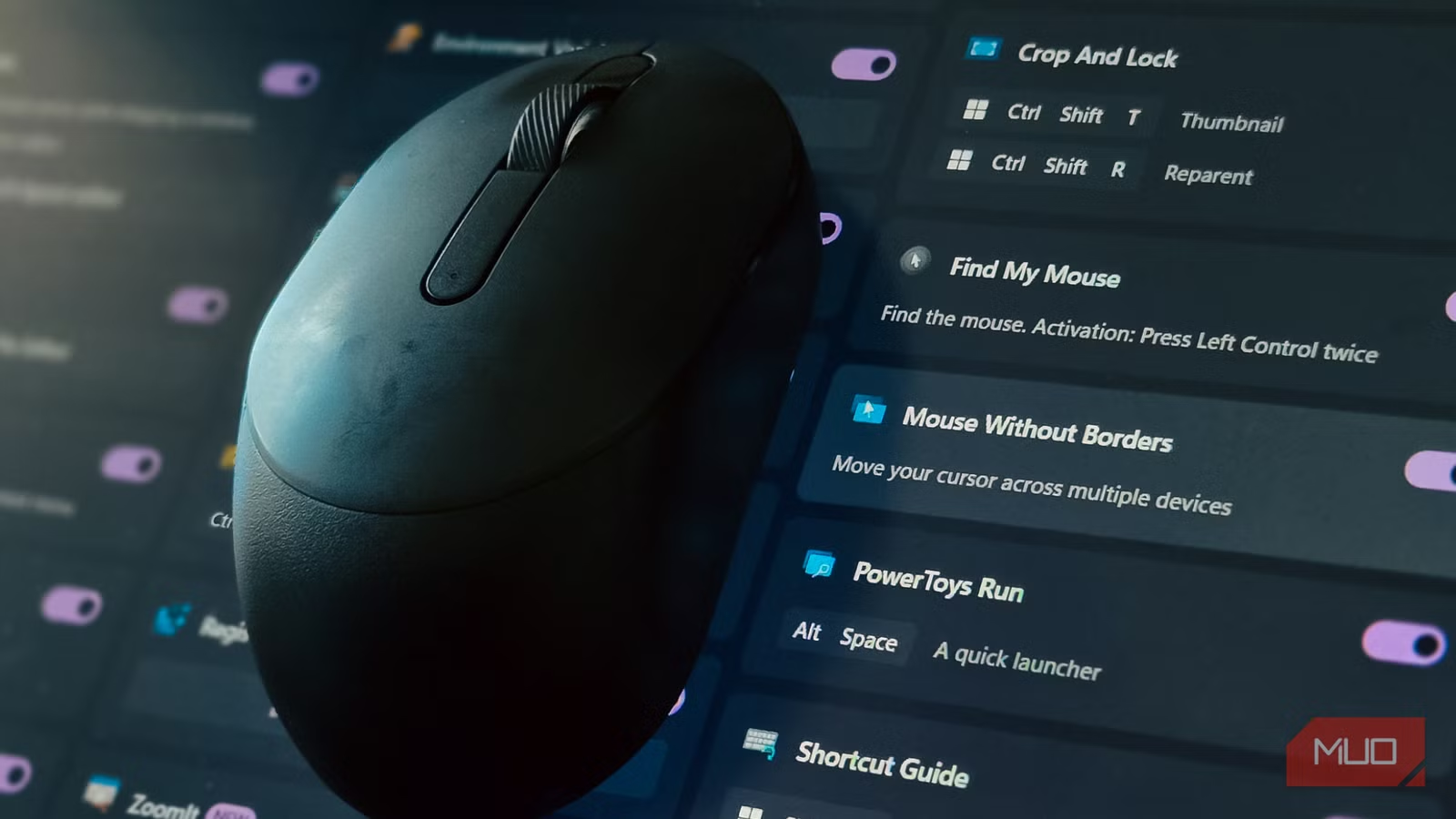
A clear alternative could be a KVM switch, yet I preferred a software solution that wouldn’t require extra hardware. Luckily, PowerToys offers an ideal answer through Mouse Without Borders. This remarkable, free utility enables you to move your mouse fluidly across multiple Windows PCs via a secure local connection.
What is Mouse Without Borders, and How Does It Work?
Emulating a KVM Switch
Some higher-end keyboards and mice, such as Logitech’s MX series, come equipped with built-in device switching capabilities. Paired with Logitech’s Options+ app, you can easily switch inputs with dedicated keys. This feature is great for occasional device changes but becomes impractical for those of us continually switching between various machines throughout the day.
Enter the KVM switch—a traditional hardware solution that permits control over multiple computers using a single set of peripherals. However, they necessitate an investment in hardware and are only practical when all your devices connect to a single monitor. Moreover, KVM switches usually require devices to be physically close together.
Mouse Without Borders provides a more user-friendly software solution. It crafts a seamless workspace across all your computers. All you need to do is move your mouse to the edge of one screen, and voilà—it appears on the next computer! Your keyboard input follows suit, allowing you to type on whichever machine your cursor graces. It also facilitates text copying and pasting between systems, and even file dragging and dropping from one PC to another.
Setting Up Mouse Without Borders
Installation and Linking Devices
To get started, you’ll need to install PowerToys on every computer you wish to connect. If it’s not already on your devices, simply download it from the Microsoft Store. After installation, open PowerToys settings and navigate to the Mouse Without Borders section under Windowing & Layout.
On your primary computer, enable Mouse Without Borders and click on New Key to generate a security key. This unique code links your computers together, so be sure to jot it down along with your computer’s name displayed in the same window.
Next, go to your second computer, enable Mouse Without Borders, and enter the security key and host computer name when prompted. Click on Connect and wait a few seconds for both machines to find each other. The status indicator will turn green upon a successful connection.
Mouse Without Borders visually represents your connected computers as movable boxes. If your second computer is positioned to the right of your main machine, simply drag its box rightward. This easy arrangement resembles the setup used for multiple displays in Windows 11, making it intuitive to manage. You can connect up to four computers, just repeating this process for each additional machine.
Using Mouse Without Borders
Configuring Behaviors and Shortcuts
Once your setup is complete, test it out by moving your cursor past the edge of one screen—your mouse should seamlessly appear on the corresponding edge of the next computer. However, there are advanced options to maximize your experience with this fantastic PowerToys utility.
One particularly handy feature is clipboard sharing. This allows you to copy text from one computer, shift over to another, and paste it. File transfers mimic this convenience, although there’s a 100MB limit per file. For larger files or folders, compress them first or utilize other methods for moving files between PCs.
Mouse Without Borders also supports keyboard shortcuts for swift device switching. For instance, pressing Ctrl + Alt + 1 to 4 lets you jump directly to a specific computer without needing to move your mouse. Additionally, pressing Ctrl + Alt + F12 locks all connected machines simultaneously—perfect for when you need to step away. The Easy Mouse toggle (using Ctrl + Alt + M) temporarily disables edge switching. This is particularly useful if you’re working in full-screen applications or games, preventing unintentional switches.
In the Advanced Settings, you can fine-tune how close to the screen edge your mouse needs to be before switching and add delays to stave off accidental changes. If you prefer, you can completely disable switching in full-screen apps. The service mode option requires admin rights, ensuring Mouse Without Borders functions with elevated applications as well as on the Windows lock screen.
Mouse Without Borders Keeps Things Simple
For many Windows users, Mouse Without Borders strikes the perfect balance between functionality and simplicity. It’s a part of PowerToys, eliminating the hassle of installing extra tools. For casual users like myself, who may only utilize it a few times daily, it works exceptionally well.
However, while Mouse Without Borders is effective, it may not suit everyone. Alternatives like Input Director deliver a smoother experience with improved multi-monitor support and more intricate control options, albeit with a steeper setup process. Synergy offers a more intuitive interface and supports Windows, Mac, and Linux, delivering the most fluid performance of any solution I’ve tried. That said, with a price tag of $29, it’s best if you require cross-platform capabilities or flawless switching.
In your journey to optimize your workflow and enhance your productivity, Mouse Without Borders could be the perfect tool to simplify your experience. Whether you’re a busy professional, a creative, or simply someone who juggles multiple tasks, this smart utility can empower your daily operations. So, why not give it a try? You might just find it transforms the way you work!