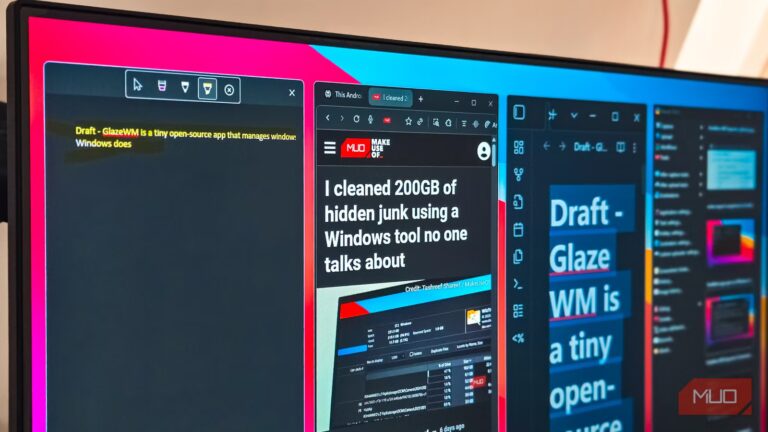
Maximize Your Second Monitor’s Potential: 5 Essential Settings to Boost Productivity

I’ve recently taken my dual-monitor setup to new heights, discovering effective ways to enhance productivity and creativity. Whether it’s finding open-source software to combat distractions or utilizing system tools to simplify my workflow, every day brings a fresh opportunity to elevate my digital experience. Join me as I share valuable insights and settings that have significantly transformed my dual-monitor journey.
Ensure Your Refresh Rate is Optimized
The Surprising Importance of Refresh Rates
One of my primary considerations when upgrading my monitor is the refresh rate. While many believe it’s unnecessary to go beyond 60 frames per second, once you’ve experienced higher refresh rates, 60Hz can feel stuttery and unsatisfactory. What’s astonishing is how many individuals overlook this aspect, leading to dissatisfaction with their supposedly high-end monitors.
Before settling into your new setup, take a moment to dive into your Display Settings. Ensure that you’ve selected the desired Hz rating for your monitor. A simple adjustment could transform your experience from a jittery ordeal to a beautifully smooth display, ultimately saving both time and money.
Explore Alternate Connections and Profiles
Unlocking Your Monitor’s Potential
This may seem like common knowledge, but it’s worth emphasizing: always verify your monitor’s settings and ensure you’re using the optimal connection. Given the risk of OLED burn-in, I frequently adjust settings through my monitor’s built-in menu to enhance longevity.
Choosing the right cable is also essential. Some monitors thrive with HDMI, while others perform significantly better with DisplayPort. A little research into both your monitor and the appropriate cabling can ensure you’re maximizing performance and avoiding unnecessary expenses.
Hide the Taskbar for a Sleeker Look
Streamline Your Visual Workspace
Aesthetic appeal matters, especially when optimizing screen real estate. Recently, I hid the taskbar on my vertical monitor, which may seem trivial, but it visually enlarges the display. If you’re intrigued by this idea, Windows 11 makes it a breeze:
- Right-click the taskbar on your secondary display.
- Open Taskbar Settings.
- Navigate to Taskbar behaviors.
- Disable ‘Show my taskbar on all displays’.
With this adjustment, any minimized program will automatically default to the primary taskbar, offering you extra space for whatever creative endeavor you pursue. Why not consider a fun idle game, like Rusty’s Retirement, for your second screen?
Discover the Power of Windows PowerToys
A Game Changer for Users
After venturing into Dual Monitor Tools, many recommended I explore Microsoft PowerToys—a powerful open-source software that redefined my PC usage. While Dual Monitor Tools has its merits, I quickly recognized the immense customization options PowerToys provides, making complex tasks feel completely manageable for users of all skill levels.
Although I’ve only recently integrated PowerToys into my setup, tools such as FancyZones, Always On Top, and a cursor finder have already become invaluable. For anyone who’s experienced the frustration of losing track of their cursor, this tool is a simple yet ingenious solution.
Embrace Multiple Programs Simultaneously
Enhance Your Customization Experience
Similar to PowerToys, I’ve also explored DisplayFusion, thanks to numerous recommendations. Its ability to seamlessly work with PowerToys while offering an array of customization options has made it one of my favorites. There’s even a Steam version available for those hesitant to buy from the official site.
I’ve been enjoying the free version for some time and am contemplating upgrading to the Pro version. With a one-time cost of $40 for a lifetime license, it’s a worthwhile investment amidst a sea of subscription services.
Valuable Lessons in a Short Time
While some tips may seem elementary to seasoned users, they can be enlightening for those just embarking on their dual-monitor adventure. Everyone has unique computing needs, and sharing tools and insights fuels the excitement of enhancing our digital experiences.
As I transition from Dual Monitor Tools to more advanced enhancements, I am genuinely excited about the possibilities that lie ahead. Let’s keep exploring together!
Are you ready to elevate your dual-monitor experience? Dive into these tips, experiment with new tools, and let your creativity flourish!