Discover the Ultimate Free, Lightweight Open-Source PDF Reader That Meets All Your Needs!
I often turn to PDFGear when I need to dive into serious PDF editing. It’s undoubtedly the best free PDF editor available. However, I sometimes find it a bit overwhelming, especially when I simply want to read a document. Of course, I could rely on my browser’s built-in PDF viewer for quick reads, which works fine for basic files. But when it comes to larger PDFs or juggling multiple documents, browsers can struggle.
That’s where Sumatra PDF shines. It’s like a pocket-sized multitool for document reading on Windows—an apt description, indeed. This software is not only fast and lightweight, but it’s also surprisingly versatile, supporting PDFs, eBooks, comic books, and CHM files.
Lightning Fast
A Lightweight Solution
Downloading Sumatra PDF was a breeze; it took me less than a minute to install and start reading my first PDF file. The installer is incredibly light at under 8MB, growing to just over 23MB on your disk after installation. Plus, if you prefer a portable version, you can easily run it from a USB drive.
You’ll notice its minimal footprint right from the start. Simply launch the app, drag and drop your PDF file, and watch it open immediately—even with multi-page documents loaded with graphics. Scrolling through numerous pages is smooth, with zero stuttering or lag when transitioning between sections.
I put it to the test with a hefty 15MB, 872-page PDF packed with charts and diagrams. Sumatra loaded it in a flash, while both Chrome and PDFGear took noticeably longer, making the experience less fluid.
A Clean and Minimal User Interface
Clever Yet Simple
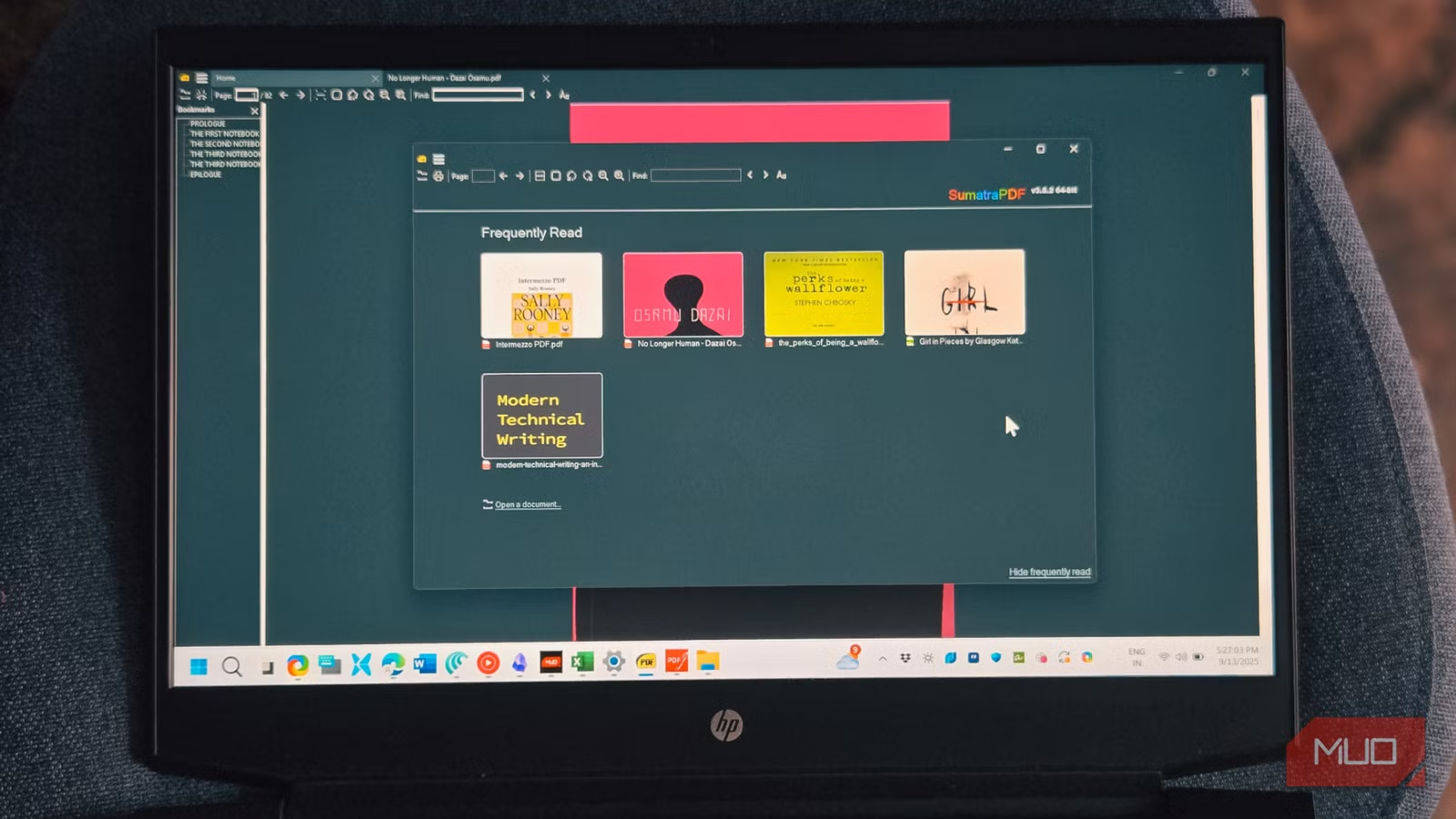
Sumatra PDF features an almost empty interface, with options to add documents and a basic toolbar. However, as you read, it conveniently builds a Frequently Read section, displaying thumbnails of recently accessed documents. You can pin essential files for quick access or remove them when you’re finished.
This implementation outshines the traditional list view seen in many PDF editors. If you prefer a completely uncluttered look while reading, you can easily hide this feature. Importantly, the interface gracefully takes a backseat, allowing you to focus on the content. The tabbed functionality is a bonus, letting you open multiple documents without cluttering your taskbar—a feature surprisingly overlooked by many PDF readers.
You can also switch between various viewing modes; the book view displays pages side by side like a physical book, the single-page view highlights one page at a time, and the wide view stretches everything to fit your screen width.
More Options
Essential File Management
Within the app’s hamburger menu, you can access basic file management options, but the standout is the Command Palette feature. Activate it using Ctrl + K, and you’ll see a searchable menu showcasing all actions—annotations, recently accessed files, and everything else Sumatra can do.
All fundamental controls are neatly arranged in the toolbar. You’ll find options to rotate sideways-scanned documents, zoom in for tiny text, and navigation arrows for swift page jumping. The design is practical rather than flashy.
Beyond PDFs, Sumatra can handle EPUB and MOBI files for eBooks, CBZ and CBR for comic books, CHM help files, and even XPS documents. This means if you’re managing various formats, you won’t need separate readers for each one.
Quick Annotation and Translation
Noteworthy Advanced Features
While Sumatra PDF doesn’t boast extensive editing options, it does support basic annotations like highlighting, underlining, striking through text, and adding stamps. You can also add text to documents, although it’s not as fluid as leading editors like PDFGear or Sejda. Direct text edits or page rearrangements aren’t possible, but for quick notes and markups, it does the trick during your reading sessions.
What’s particularly handy is its built-in translation feature. Highlight any text in your PDF, and you can quickly translate it through Google Translate or DeepL with a simple right-click. You also have the option to search selected text on Google or Bing without the hassle of copying and pasting.
Usability Like No Other
Sumatra PDF isn’t going to replace dedicated PDF editors for intensive document work, but that’s not its intention. It serves as an ideal multi-format PDF reader, allowing you to breeze through documents or books without the wait associated with heavier applications.
For day-to-day PDF reading, quick annotations, and basic file management, Sumatra PDF hits the sweet spot between functionality and simplicity. It conserves system resources, avoids overwhelming updates or premium features, and fulfills its purpose as a PDF reader—letting you engage with your files without distractions.
Ready to transform your reading experience? Try Sumatra PDF today and discover how effortless document management can be. Let your reading flow without interruption!