Discover the Hidden Power of Microsoft Loop: Features that Showcase Its True Potential
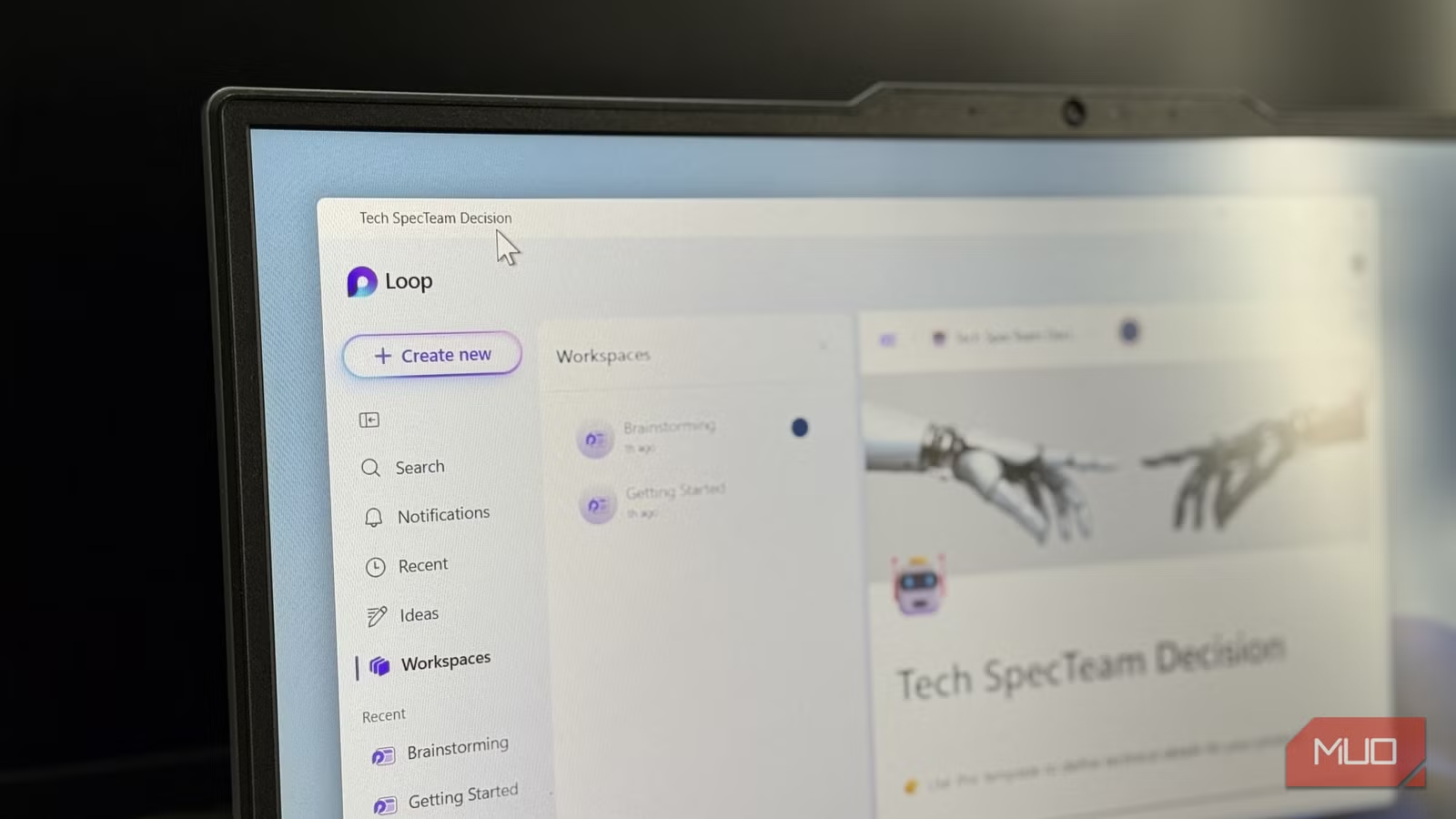
Microsoft Loop has emerged as a noteworthy player in the realm of collaboration tools, and it’s easy to see why. At first glance, you might mistake it for yet another app revolving around checklists, tables, and pages — perhaps something akin to Notion. However, a deeper dive reveals that Loop goes far beyond simple organization.
The magic of Loop lies in its dynamic nature. Pages, components, and tasks update in real time, seamlessly integrating with Teams, Outlook, and OneNote. It’s not just a workspace; it’s an intelligent environment where collaboration flourishes, allowing you to turn ideas into action at remarkable speed.
Page Templates to Jumpstart Your Work
Get Started Fast
While Microsoft Loop shines in collaboration, its page templates often don’t receive the spotlight they deserve. These templates are meticulously designed to help you hit the ground running, offering a diverse range suited for various needs—whether you’re planning a project, taking meeting notes, or sparking creativity.
For instance, the Project Plan template is a curated powerhouse, complete with task lists, status trackers, and priority labels all in one place. Meanwhile, the Meeting Notes template organizes agendas, crucial points, and actionable items, facilitating real-time participation. Even brainstorming sessions benefit from the Brainstorming and Creative Sprint templates, which incorporate dynamic components that can be effortlessly shared across Microsoft applications.
As remarkable as Notion’s template library is, Loop’s templates feel like an organic extension of your workspace—integrated rather than just added on.
Flexible Page Design and Content Blocks
Everything Moves with Your Workflow
One of Loop’s standout features is its flexible, free-form pages. You’re free to reposition sections, resize tables, and organize content blocks to suit your vision, all without disrupting the structure of your page.
But the true brilliance emerges from the content blocks. Each block—whether it’s a checklist, a table, a paragraph, or even an interactive component like a poll—can be edited independently and transferred across various pages or applications. When you make adjustments in one area, everything gets updated everywhere it’s utilized.
Collaboration becomes fluid as team members comment, assign tasks, and rearrange blocks in real time. The pages evolve as your projects progress, offering a dynamic workspace that adapts to your needs.
Smart Workspaces That Organize Automatically
Let Loop Do the Heavy Lifting
Loop’s workspaces operate like living dashboards, ensuring that your projects remain synchronized effortlessly. Whenever you introduce a new page or component, it gets automatically categorized within the relevant workspace view, sorted by project, team, or context.
As your work evolves, these workspaces adapt in real time. The most pertinent pages and components surface, recent changes are displayed immediately, and outdated items recede into the background. For teams managing multiple initiatives, this intelligent organizational structure transforms potential chaos into clear, actionable focus.
Loop Components That Live Across Apps
Keep Your Tasks, Tables, and Polls in Sync Everywhere
One of Loop’s compelling strengths is its seamless collaboration throughout the Microsoft ecosystem. You can transfer components—like tables, checklists, or polls—directly into Teams chats, Outlook emails, or OneNote pages, maintaining their interactive nature. Updating a task in Teams means it updates on your Loop page without any extra effort.
Loop excels at context-awareness; shared components retain their project or page links, ensuring collaborators always know where the information fits in. Coupled with its smart workspaces, this functionality makes cross-app collaboration not just feasible but remarkably smooth.
For users of third-party apps like Jira, Trello, and Figma, Loop provides additional layers of connectivity, allowing you to embed or link tasks and project cards seamlessly.
AI-Powered Copilot Integration (For Those with Access)
Your AI Teammate That Drafts, Summarizes, and Keeps Work Moving
If you’re fortunate enough to access Microsoft Copilot for Microsoft 365, you’re essentially adding a supercharged teammate to your workflow. This AI co-author assists in brainstorming, drafting, and fine-tuning content right within your Loop pages.
Getting started is simple: just click the Copilot button or type / to choose Draft page content. A quick query like “Draft a project plan for launching a new product line” lets Copilot generate an organized outline complete with tables, timelines, and actionable items. You can then easily adjust the output to fit your specific needs.
Additionally, Copilot is invaluable for summarizing lengthy discussions or documents, ensuring all team members remain aligned without having to sift through excessive notes. It tracks changes as you collaborate, allowing you to review edit histories and see who contributed what.
While Microsoft Loop may not yet boast the buzz of other collaboration platforms, its capabilities demonstrate that it deserves your attention. Yes, there’s a slight learning curve for newcomers, and embedding third-party apps may feel a tad quirky at times. Nevertheless, these minor inconveniences are vastly overshadowed by the substantial value Loop delivers.
Embrace the evolution of collaboration with Microsoft Loop. With tools designed to foster engagement and efficiency, it’s time to elevate your team’s productivity. Dive in and explore the transformative potential of Loop today!